Using CSS `zoom` to Scale UI Elements
Compare CSS zoom and transform scale across layout flow, browser support, and practical UI scaling use cases to choose the right tool for your project.

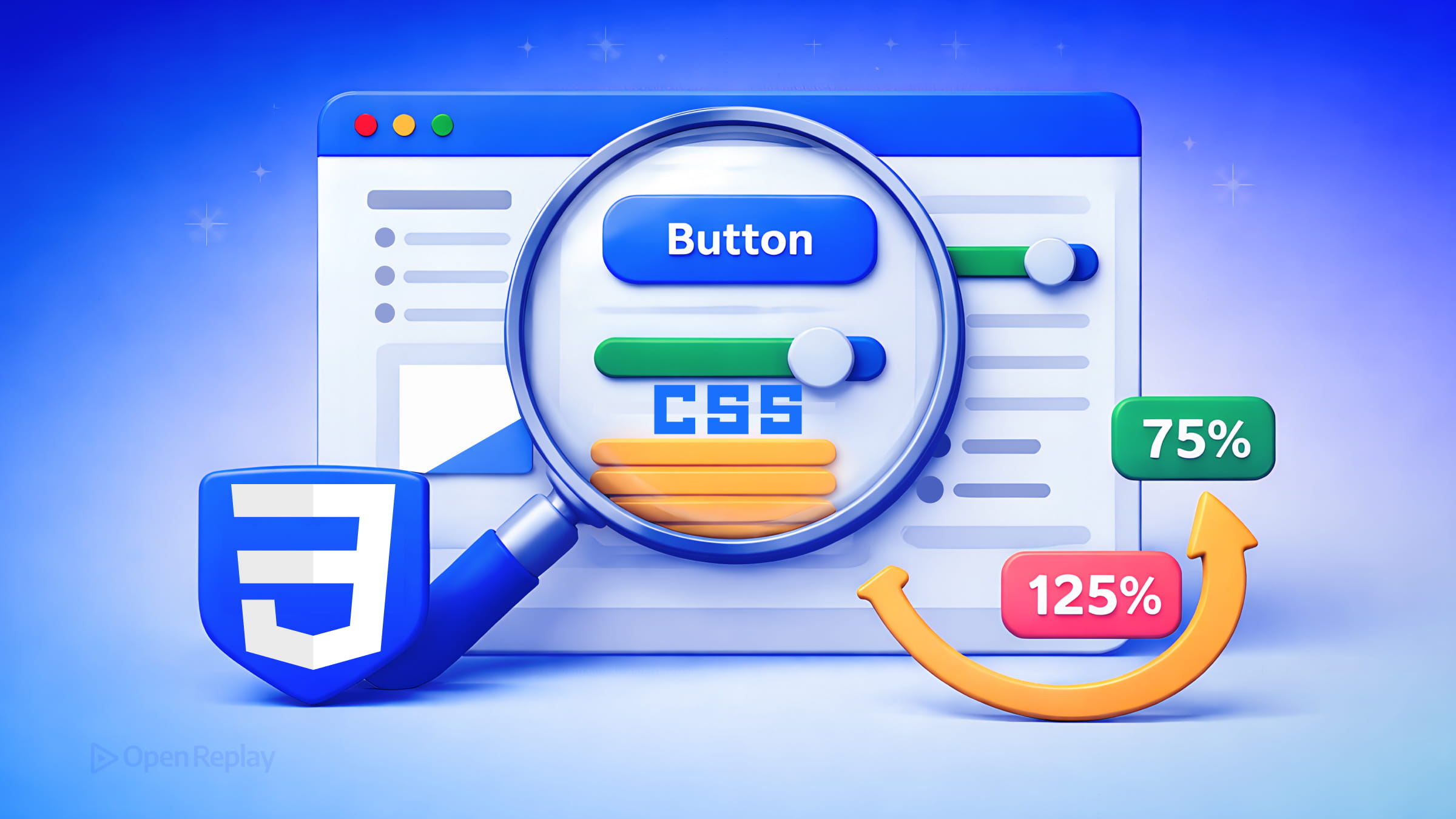
When you need to scale a chunk of UI — a widget, a preview panel, an embedded component — you have two main tools: zoom and transform: scale(). They look similar but behave very differently. Choosing the wrong one can break your layout in ways that are hard to debug.
This article explains how the CSS zoom property works, when to use it, and how it compares to transform: scale().
Key Takeaways
- The CSS
zoomproperty scales an element and its layout footprint, causing surrounding content to reflow around the new size. transform: scale()is purely visual — it changes appearance without affecting document flow.zoomis not animatable. Usetransform: scale()for animated scaling instead.- Watch for cross-browser quirks: Safari has had bugs where
getBoundingClientRect()may return pre-zoom dimensions.
What the CSS zoom Property Actually Does
The zoom property scales an element and participates in layout. When you zoom an element, surrounding content reflows around its new scaled size, just as if you had physically changed the element’s dimensions.
.preview {
  zoom: 0.75; /* renders at 75% size, occupies 75% of original space */
}
You can use numeric values or percentages:
zoom: 1— normal size (default)zoom: 1.5— 150% of original sizezoom: 0.5— 50% of original sizezoom: 150%— same as1.5
Two keyword values, normal and reset, exist in older specs but are non-standard and should be avoided in production code. Stick to numbers or percentages.
CSS zoom vs transform: scale() — The Key Difference
This is where most confusion happens.
transform: scale() is a visual transform. It changes how the element looks but leaves its layout footprint completely unchanged. A 120×120px div scaled to 2x still occupies 120×120px of space in the document flow. Other elements don’t move.
zoom is a layout-affecting scale. A 120×120px div with zoom: 2 occupies 240×240px in the flow. Surrounding elements reflow around it.
| Behavior | zoom | transform: scale() |
|---|---|---|
| Affects layout flow | ✅ Yes | ❌ No |
| Surrounding elements reflow | ✅ Yes | ❌ No |
| Scales from top-left (default writing mode) | ✅ Yes | ❌ (scales from center by default) |
| Animatable | ❌ No | ✅ Yes |
Because zoom participates in layout, it is not animatable. If you need animated scaling, use transform: scale() instead.

Discover how at OpenReplay.com.
When Using CSS zoom for UI Scaling Makes Sense
Scaling UI with CSS zoom is most useful when you want the scaled element to genuinely occupy its new size in the layout:
Scaled previews or thumbnails. If you’re rendering a full-size UI component inside a small preview card, zoom lets you shrink the entire subtree while keeping the internal layout intact.
.thumbnail-preview {
  zoom: 0.3; /* renders full component at 30% size */
  width: 400px; /* the component's natural width */
}
Embedded widgets. Third-party or legacy widgets with fixed internal sizing can be scaled down without modifying their internal CSS.
Admin dashboards. Scaling UI with CSS zoom can help fit dense data panels into constrained areas without rewriting layout logic.
Browser Support and Known Caveats
The CSS zoom property now has broad support across Chromium-based browsers, Safari, and modern Firefox (supported since Firefox 126). It’s no longer an IE-only quirk, and browser support is tracked on platforms like Web Platform Status.
However, there are real inconsistencies to know about:
getBoundingClientRect()in Safari has historically returned the pre-zoom dimensions rather than the scaled dimensions. Chrome and Firefox report the updated size correctly. If your JavaScript depends on element dimensions after applying zoom, test carefully across browsers.zoomis not a substitute for responsive design. It doesn’t adapt to viewport changes the way media queries or fluid layouts do. Use it for specific scaling needs, not as a layout system.- Nested zoom compounds multiplicatively. A parent with
zoom: 0.5containing a child withzoom: 0.5renders the child at 25% of its original size. Avoid applying zoom at multiple levels of the same subtree unless you’re explicitly accounting for this multiplication.
Conclusion
The CSS zoom property is a focused tool: use it when you need an element and its layout footprint to scale together. Reach for transform: scale() when you want visual scaling without affecting document flow, or when you need animation. Know the browser quirks around getBoundingClientRect(), skip the non-standard keyword values, and don’t animate it. Within those constraints, zoom solves a real class of UI scaling problems cleanly.
FAQs
Is CSS zoom part of an official specification?
Yes. The zoom property was originally a non-standard feature introduced by Internet Explorer, but it has since been incorporated into the CSS Viewport Module Level 1 specification. All major browsers now support it, including Firefox from version 126 onward. It is safe to use in production, though you should still test cross-browser behavior for edge cases.
Can I use CSS zoom and transform scale together on the same element?
You can, but the results may be confusing. The zoom property scales the element and its layout footprint first, then transform scale applies a purely visual transformation on top. The two effects multiply visually, but only zoom affects document flow. Combining them is rarely necessary and makes debugging harder, so use one or the other unless you have a clear reason.
Does CSS zoom affect media queries or breakpoints?
No. The zoom property does not change the viewport width or trigger media query breakpoints. It only scales the element and its descendants within the existing layout context. If you need your UI to respond to different viewport sizes, use media queries, container queries, or fluid layout techniques instead of zoom.
How does CSS zoom interact with fixed-position or sticky elements inside the zoomed container?
Behavior can vary between browsers, especially with fixed-position elements. Because zoom changes layout scaling, positioning calculations may not behave exactly the same across engines. If your zoomed subtree contains fixed or sticky elements, test carefully across browsers.
Truly understand users experience
See every user interaction, feel every frustration and track all hesitations with OpenReplay — the open-source digital experience platform. It can be self-hosted in minutes, giving you complete control over your customer data.
Star on GitHub12k