How to Detect Online and Offline Status in JavaScript
Detect online and offline status in JavaScript with navigator.onLine, online/offline events, and fetch-based connectivity checks.

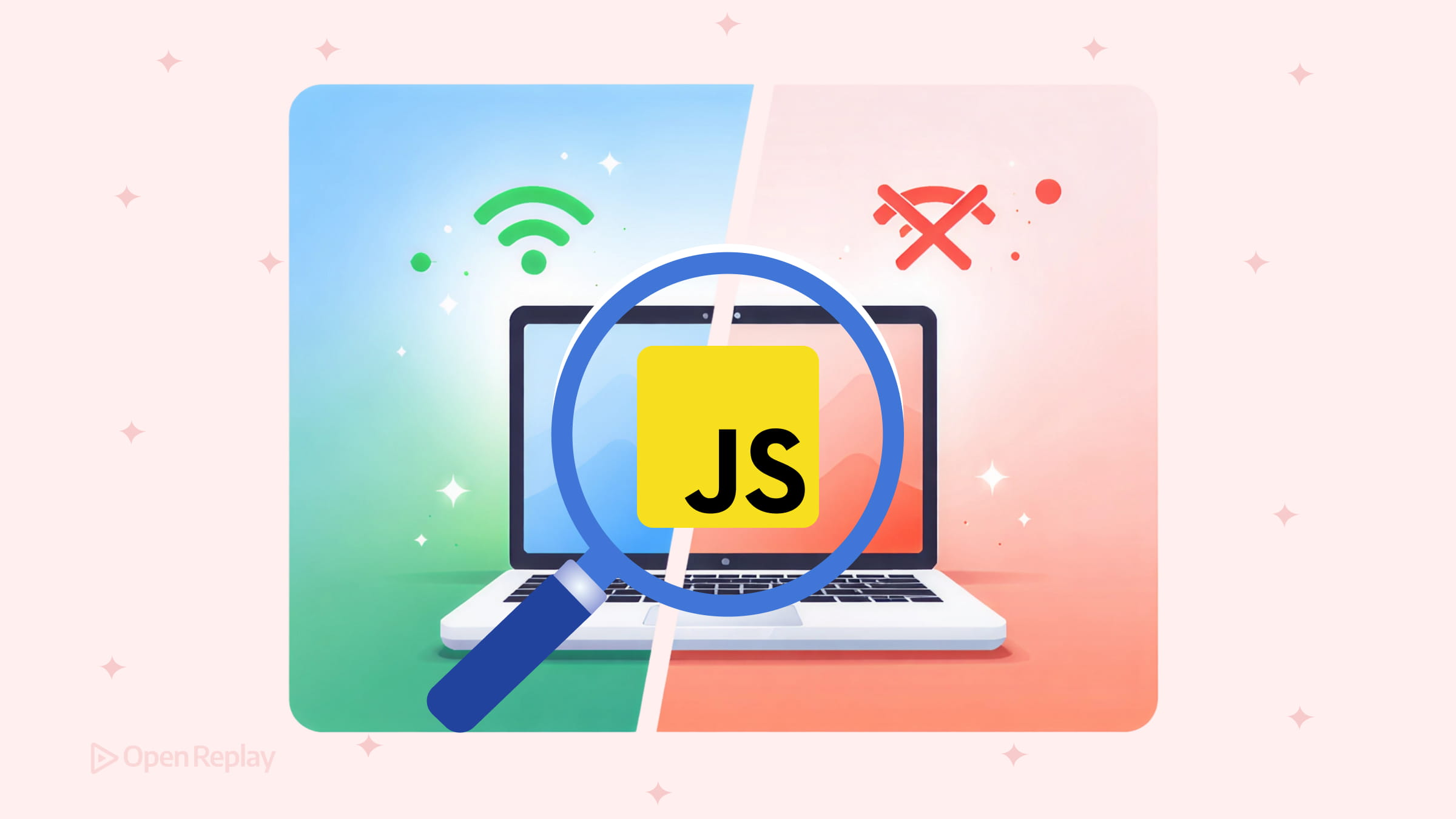
Your app looks fine — until a user loses their connection mid-session and nothing works. Detecting online and offline status in JavaScript lets you respond gracefully: show a warning banner, pause network requests, or retry automatically when connectivity returns. Here’s how to do it reliably.
Key Takeaways
- Use
navigator.onLineto check connectivity status on page load and theonline/offlinewindow events to react to changes in real time. navigator.onLinereturningtruedoes not guarantee actual internet access — it only confirms the device is connected to some network.- Verify real connectivity with a lightweight
fetchrequest to your own backend before resuming critical operations. - Combine all three approaches for robust, production-ready offline handling.
The Quick Answer: navigator.onLine and Window Events
The browser exposes two tools for JavaScript online/offline detection:
navigator.onLine— a boolean property you can read at any timeonlineandofflinewindow events — fired when connectivity status changes
Together, they cover the two scenarios you care about: checking status on page load and reacting when it changes.
Reading navigator.onLine on Page Load
if (navigator.onLine) {
  console.log('Browser reports online')
} else {
  console.log('Browser reports offline')
}
This is useful for setting initial UI state when the page first loads — for example, disabling a “Sync” button if the user is already offline.
Listening for Online and Offline Events in JavaScript
Polling navigator.onLine on a timer is wasteful. Instead, use the online and offline events on window:
window.addEventListener('online', () => {
  console.log('Connection restored')
  // Re-enable UI, retry pending requests
})

window.addEventListener('offline', () => {
  console.log('Connection lost')
  // Show offline banner, disable network actions
})
These events fire automatically when the browser detects a change in network status, so your app reacts immediately without any polling overhead.
Practical Example: Showing an Offline Banner
Here’s a minimal, production-ready pattern that combines both approaches:
const banner = document.getElementById('offline-banner')

function updateOnlineStatus() {
  banner.hidden = navigator.onLine
}

// Set initial state
updateOnlineStatus()

// React to changes
window.addEventListener('online', updateOnlineStatus)
window.addEventListener('offline', updateOnlineStatus)<div id="offline-banner" hidden>
You're offline. Some features may be unavailable.
</div>This pattern is clean, event-driven, and avoids memory leaks since the listeners are attached once and reuse the same handler function.
The Critical Limitation of navigator.onLine
This is the part most tutorials underexplain. navigator.onLine does not confirm actual internet access.
falseis reliable — the browser is definitely offline.trueonly means the device is connected to some network (a router, a VPN adapter, a LAN). The user could be behind a captive portal, or your backend could be unreachable.
Don’t trust
navigator.onLinereturningtrueas proof of connectivity. Use it to hint that the user may be offline, not to confirm they’re connected.

Discover how at OpenReplay.com.
Verifying Real Connectivity with a Network Request
When navigator.onLine returns true but a critical operation fails, confirm reachability with a lightweight request to your own backend:
async function isReachable() {
  try {
    const response = await fetch('/health-check', {
      method: 'HEAD',
      cache: 'no-store',
    })
    return response.ok
  } catch {
    return false
  }
}
Use your own endpoint — not a third-party URL — to avoid CORS issues. A HEAD request to a small, fast route keeps bandwidth impact minimal.
Optional: The Network Information API
For connection quality hints (not just online/offline), navigator.connection exposes properties like effectiveType ('4g', '3g', 'slow-2g') and downlink. Browser support is limited to Chromium-based browsers — treat it as a progressive enhancement only.
Testing Offline Behavior in DevTools
Open Chrome DevTools → Network tab → set the throttle dropdown to Offline. This triggers the offline event and sets navigator.onLine to false, letting you test your UI without disconnecting your machine.
Conclusion
Detecting online status in JavaScript comes down to three things: read navigator.onLine on load, listen to online/offline events for changes, and verify real connectivity with a fetch request before resuming critical operations. That combination handles the vast majority of real-world connectivity scenarios cleanly and efficiently.
FAQs
Can I use navigator.onLine to confirm the user has internet access?
No. navigator.onLine returning true only means the device is connected to some network, such as a router or VPN adapter. It does not guarantee actual internet access. The user could be behind a captive portal or your server could be down. Always verify with a real network request for critical operations.
Do the online and offline events work in all major browsers?
Yes. The online and offline window events and the navigator.onLine property are supported in all modern browsers, including Chrome, Firefox, Safari, and Edge. They are part of the HTML specification and have had broad support for many years.
How should I verify real connectivity in a production app?
Send a lightweight fetch request, such as a HEAD request, to a health-check endpoint on your own server. Use cache no-store to bypass the browser cache. If the request succeeds and returns an ok status, the user has genuine connectivity. Avoid pinging third-party URLs to prevent CORS issues.
Is the Network Information API reliable for detecting connection quality?
The Network Information API provides useful hints like effective connection type and downlink speed, but browser support is limited to Chromium-based browsers. Safari and Firefox do not support it. Treat it as a progressive enhancement and always provide fallback behavior for unsupported browsers.
Complete picture for complete understanding
Capture every clue your frontend is leaving so you can instantly get to the root cause of any issue with OpenReplay — the open-source session replay tool for developers. Self-host it in minutes, and have complete control over your customer data.
Star on GitHub12k