How to Inspect and Edit Cookies in Chrome DevTools
Inspect, edit, and delete cookies in Chrome DevTools using the Application panel, Network panel headers, and cookie fields like HttpOnly, Secure, and SameSite.

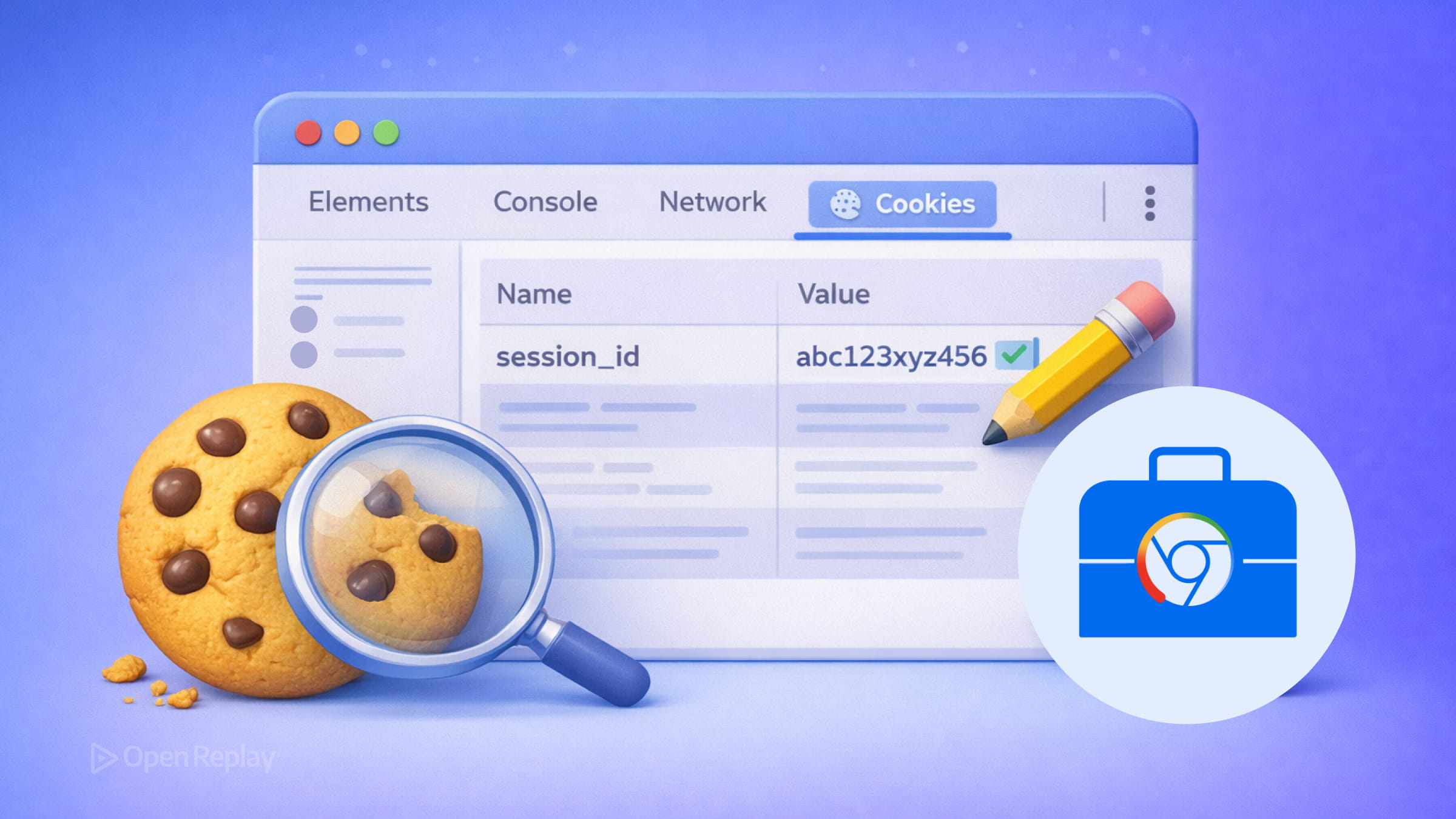
When authentication breaks, sessions expire unexpectedly, or client-side state behaves strangely, cookies are usually the first place to look. Chrome DevTools gives you a direct view into every cookie your page sets — and lets you modify them without writing a single line of code.
Here’s exactly how to use the Chrome DevTools cookies panel to inspect, add, edit, and delete cookies during development.
Key Takeaways
- Access the cookies panel through Application → Storage → Cookies in Chrome DevTools to view all cookies for a given origin.
- Each cookie row exposes critical fields like Domain, Path, SameSite, HttpOnly, and Secure — understanding these is essential for debugging authentication and session issues.
- You can add, edit, and delete cookies directly in the Application panel without writing any code.
- Use the Network panel’s Cookies tab to verify what cookies are actually sent in requests and received in responses at the HTTP level.
- Third-party cookies appear with warning icons in the Application panel, helping you identify cross-site cookie issues as browser privacy restrictions tighten.
Opening the Chrome DevTools Cookies Panel
- Open Chrome DevTools with
F12(Windows/Linux) orCmd + Option + I(Mac). - Click the Application tab.
- In the left sidebar, expand Storage → Cookies.
- Select an origin to view its cookies.
You’ll see a table listing every cookie associated with that origin.
Understanding Cookie Fields
Each row in the cookies table represents one cookie. Here’s what each column means and why it matters when you debug cookies in Chrome DevTools:
| Field | What It Tells You |
|---|---|
| Name | The cookie’s key |
| Value | The stored data (check Show URL-decoded to decode percent-encoded values) |
| Domain | Which hosts receive this cookie — .example.com includes subdomains, while sub.example.com does not |
| Path | The URL path scope required for the browser to send the cookie |
| Expires / Max-Age | Expiration date, or Session for cookies that clear when the browser session ends |
| Size | Cookie size in bytes (auto-calculated, not editable) |
| HttpOnly | If checked, JavaScript cannot read this cookie — it is only visible via DevTools or the Network panel |
| Secure | If checked, the cookie only transmits over HTTPS |
| SameSite | Strict, Lax, or None — controls cross-site sending behavior |
| Partition Key | Present on partitioned cookies (CHIPS) — shows the top-level site that owns this cookie’s storage partition |
Use the Filter box to search by name or value when a page sets many cookies. Partitioned cookies (CHIPS) are part of newer browser privacy models and their support status can be tracked on https://webstatus.dev/features/partitioned-cookies.
How to Add, Edit, and Delete Cookies
Adding a cookie:
- Double-click an empty row at the bottom of the table.
- Type a name and value, then press
Enter. - DevTools fills in default values for the other fields automatically.
Editing a cookie:
- Double-click any field to edit it inline.
- The Size field updates automatically — everything else is editable.
- DevTools highlights invalid values in red.
- Use Only show cookies with an issue to filter out valid entries and focus on problems.
Deleting cookies:
- Select a cookie row and click Delete selected in the action bar.
- Click Clear all to wipe every cookie for the selected origin.
This is particularly useful when testing login flows — you can manually expire a session cookie or change a token value to verify how your application handles edge cases.

Discover how at OpenReplay.com.
Using the Network Panel to Debug Cookie Headers
The Application panel is your workspace for editing cookies. The Network panel is where you verify what’s actually being sent and received.
Open the Network panel, click any request, then select the Cookies tab. You’ll see two sections:
- Request Cookies — what the browser sent to the server.
- Response Cookies — what the server instructed the browser to set via
Set-Cookieheaders.
This distinction matters because JavaScript cannot read the Set-Cookie response header directly. If a cookie isn’t appearing after login, check the Network panel first to confirm the server is actually setting it. The behavior of the Set-Cookie header is documented in the MDN Set-Cookie reference.
Identifying Third-Party Cookies
In the Application panel, third-party cookies — those set by a domain different from the current top-level page — appear with a warning icon. These cookies typically carry SameSite=None and require the Secure attribute. Hover over the icon for details. In modern Chrome DevTools, cookie privacy warnings and related diagnostics may also appear directly in the Console.
As browser privacy policies continue to evolve, Chrome and other browsers are increasingly restricting how third-party cookies behave. Testing your site’s cookie behavior under these restrictions is worth building into your regular debugging workflow.
Conclusion
The Chrome DevTools cookies panel gives you everything you need to inspect and edit cookies without leaving the browser. Use the Application panel for storage inspection and manual edits. Use the Network panel to verify what cookies are actually being sent and received at the HTTP level. Together, these two panels cover the full cookie debugging workflow for authentication, sessions, and client-side state management.
If you want deeper reference material about how Chrome exposes cookies and related attributes in DevTools, see the official Chrome DevTools cookie debugging guide.
FAQs
Why does my cookie not appear in the Application panel after a successful login?
The server may not be sending the Set-Cookie header correctly, or the cookie's Domain or Path attributes may not match the current page. Open the Network panel, find the login request, and check the Response Cookies tab to confirm the header is present and correctly formed.
What is the difference between Session and persistent cookies in DevTools?
A session cookie has no Expires or Max-Age value and shows Session in the expiration column. It is deleted when the browser session ends. A persistent cookie has a specific expiration date and remains stored until that date passes or the cookie is manually deleted.
Why is my cookie marked with a warning icon in the Application panel?
The warning icon typically indicates a third-party cookie or a cookie with a missing or misconfigured SameSite attribute. Hover over the icon for a summary, and additional diagnostics may appear in the DevTools Console.
Can I edit HttpOnly cookies using JavaScript in the browser console?
No. HttpOnly cookies are inaccessible to JavaScript by design, which protects them from cross-site scripting attacks. However, you can view and edit them directly in the Chrome DevTools Application panel by double-clicking the relevant field.
Gain control over your UX
See how users are using your site as if you were sitting next to them, learn and iterate faster with OpenReplay — the open-source session replay tool for developers. Self-host it in minutes, and have complete control over your customer data.
Star on GitHub12k