
The Linux Cron Cheatsheet

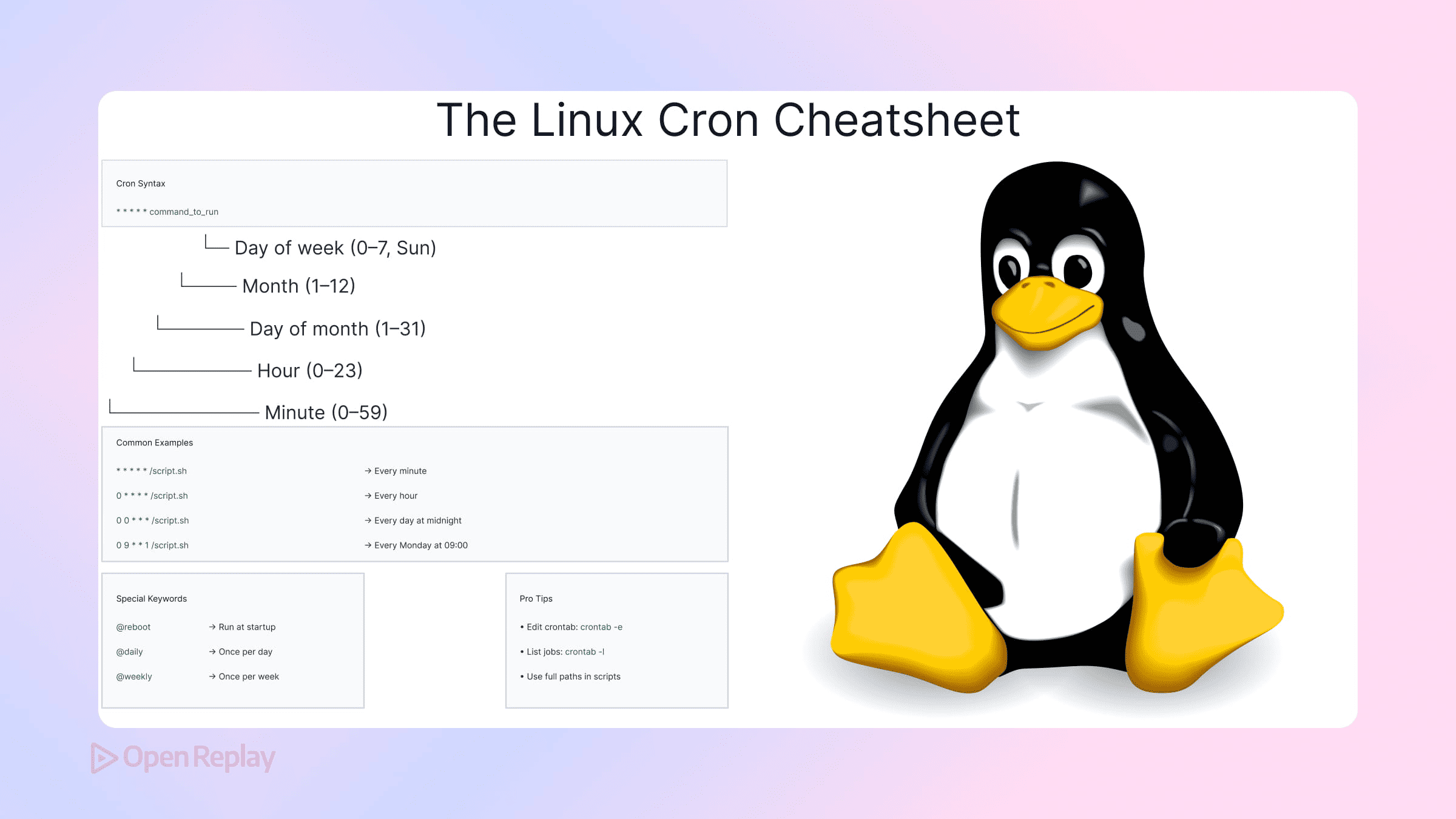
You’ve deployed your Node app to a Linux server and need a script to run every night at 3 AM. You’ve heard of cron, but the syntax looks cryptic and the tutorials you’ve found are either outdated or filled with inaccuracies. This Linux cron cheatsheet gives you the correct, distro-aware reference you need for reliable cron job scheduling.
Key Takeaways
- Cron uses a five-field format (minute, hour, day of month, month, day of week) followed by the command to execute.
- When both day-of-month and day-of-week are specified, cron treats them as OR, not AND—a common source of unexpected behavior.
- Cron runs with a limited, distro-dependent environment, so always use absolute paths and explicitly set PATH for portability.
- Different Linux distributions use different cron implementations with varying feature support.
Crontab Syntax: The Five-Field Format
Every cron job follows this structure:
┌───────────── minute (0-59)
│ ┌─────────── hour (0-23)
│ │ ┌───────── day of month (1-31)
│ │ │ ┌─────── month (1-12)
│ │ │ │ ┌───── day of week (0-6, Sunday=0)
│ │ │ │ │
* * * * * command
Special characters:
*— any value,— list separator (1,3,5)-— range (1-5)/— step values (*/15 means every 15)
Important: Characters like L, W, #, and ? are Quartz scheduler syntax, not standard cron. Don’t use them in Linux crontabs. If in doubt, check your system’s own documentation via man 5 crontab.
Common Scheduling Patterns
*/5 * * * *     # Every 5 minutes
0 * * * *       # Top of every hour
0 3 * * *       # Daily at 3 AM
0 0 * * 0       # Weekly on Sunday at midnight
0 0 1 * *       # First day of every month
Special Strings
Most cron implementations support these shortcuts (support may vary on minimal systems like BusyBox):
| String | Equivalent |
|---|---|
@reboot | Run once at startup |
@hourly | 0 * * * * |
@daily | 0 0 * * * |
@weekly | 0 0 * * 0 |
@monthly | 0 0 1 * * |
@yearly | 0 0 1 1 * |
Note that @reboot does not guarantee that networking or other services are available; for dependency-aware startup jobs, systemd timers are usually a better fit.
The Day-of-Month vs Day-of-Week Trap
When you specify both day-of-month AND day-of-week, cron treats them as OR, not AND:
0 0 15 * 1 # Runs on the 15th OR any MondayThis catches many people off guard. If you need “the 15th, but only if it’s Monday,” handle that logic inside your script.
Environment Handling
Cron runs with a limited, non-interactive environment. This is where most jobs silently fail.
PATH behavior varies by distribution and version:
- Some systems define a minimal default PATH
- Others (notably newer Ubuntu releases) may inherit PATH from the service environment
Do not rely on defaults. For portable and predictable behavior, set what you need explicitly.
Safe practices:
# Set variables at the top of your crontab
SHELL=/bin/bash
PATH=/usr/local/bin:/usr/bin:/bin
MAILTO=""

# Always use absolute paths
0 3 * * * /usr/bin/node /home/deploy/app/cleanup.js
Note: MAILTO only works if a local MTA is installed and configured. Many modern servers don’t have one. Redirect output explicitly instead of relying on email.

Discover how at OpenReplay.com.
Output and Logging
# Log everything
0 3 * * * /path/to/script.sh >> /var/log/myjob.log 2>&1

# Discard all output
0 3 * * * /path/to/script.sh >/dev/null 2>&1

# Log errors only
0 3 * * * /path/to/script.sh >/dev/null 2>> /var/log/myjob-errors.log
Essential Crontab Commands
crontab -e    # Edit your crontab
crontab -l    # List current jobs
crontab -r    # Remove all jobs (careful!)
For system-wide jobs, use /etc/cron.d/ files. Note that /etc/cron.daily/, /etc/cron.hourly/, etc. are executed via run-parts, not scanned automatically by cron. See man 8 run-parts for naming and execution rules.
Cron Implementations Vary
Different systems run different cron daemons:
- Debian/Ubuntu: cron (Vixie lineage, distro-patched)
- RHEL/Fedora: Cronie
- Alpine/containers: BusyBox
crond
Feature support (special strings, mail behavior, logging) can differ. Always verify against your local crontab(5) manual page.
Cron vs Systemd Timers
| Consideration | Cron | Systemd Timers |
|---|---|---|
| Setup complexity | Simple | More verbose |
| Missed job handling | Skipped | Configurable (Persistent=true) |
| Dependencies | None | Can wait for services/mounts |
| Logging | Manual | Built-in journald |
Use cron when: You need simple, portable scheduling that works everywhere.
Use systemd timers when: You need dependency management, persistent scheduling across reboots, or better integration with modern Linux systems. The systemd project documentation on timer units is the canonical reference.
Quick Debugging Checklist
- Is cron running?
systemctl status cronorsystemctl status crond(service name varies by distro) - Check logs:
grep CRON /var/log/syslog(Debian/Ubuntu) or/var/log/cron(RHEL/Fedora) - Test your command manually with a restricted environment
- Verify absolute paths for all commands and files
- Check file permissions on your script
Conclusion
Cron remains the simplest way to schedule jobs on Linux. Master the five-field syntax, understand the OR behavior when combining day fields, and account for distro-specific environment behavior. With these fundamentals in place, your scheduled tasks will run reliably for years.
FAQs
The most common cause is environment issues. Cron runs with a limited, non-interactive environment that differs from your shell, and PATH behavior varies by distribution. Always use absolute paths, explicitly set required variables, verify the cron service is running, and check system logs for errors.
Use the day-of-week field with a range from Monday (1) through Friday (5). For example, to run at 9 AM every weekday use: 0 9 * * 1-5 /path/to/script.sh. Remember that Sunday is 0 and Saturday is 6 in standard cron syntax.
User crontabs are edited with crontab -e and stored per-user. System crontabs in /etc/cron.d/ include an additional username field after the time specification to indicate which user runs the command. System crontabs are better suited for services and shared administration.
Run your command manually in a minimal environment that mimics cron. For example: env -i PATH=/usr/bin:/bin /path/to/script.sh. This helps surface missing dependencies or path issues that would otherwise cause silent failures.
Gain control over your UX
See how users are using your site as if you were sitting next to them, learn and iterate faster with OpenReplay. — the open-source session replay tool for developers. Self-host it in minutes, and have complete control over your customer data. Check our GitHub repo and join the thousands of developers in our community.
