From Prompt to UI with Google Stitch
Google Stitch turns prompts into UI layouts, prototypes, and HTML export. See how to write better prompts, use DESIGN.md, and hand off faster.

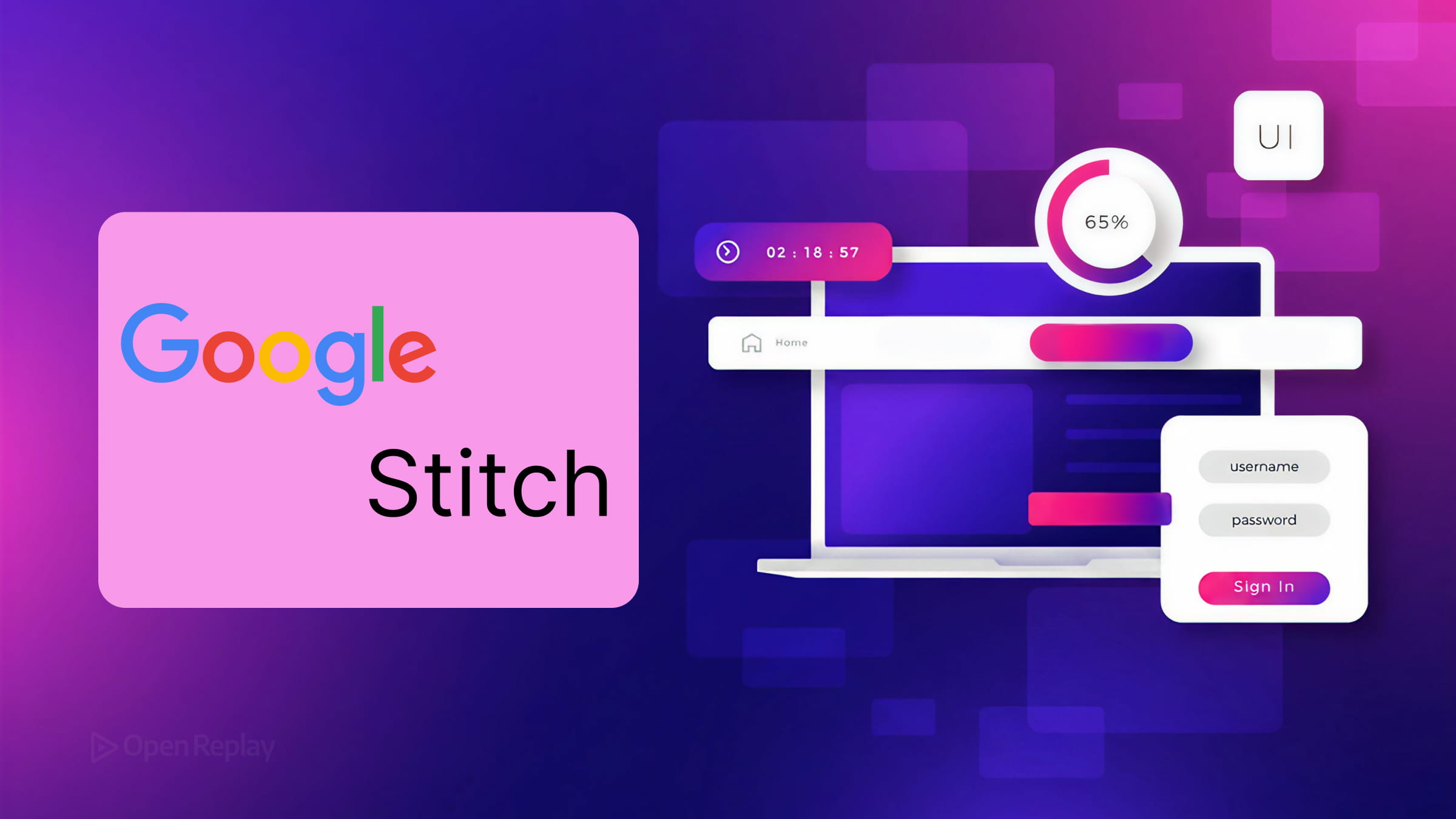
Most UI projects stall before they start. You have a clear idea in your head, but translating it into a wireframe, mockup, or prototype takes time you don’t always have. Google Stitch is built to close that gap.
Launched in May 2025 and significantly expanded since, Stitch is now a full AI-native design and prototyping canvas. It supports conversational UI generation, image and wireframe input, interactive multi-screen prototypes, voice workflows, DESIGN.md for design system portability, and SDK/MCP integration for developer handoff. This article walks through how to use it effectively as part of a real frontend workflow.
Key Takeaways
- Google Stitch converts natural language prompts into UI layouts and frontend scaffolding exportable as HTML and TailwindCSS.
- Originally launched with Gemini 2.5 Pro, Stitch now supports newer Gemini models while maintaining conversational context across iterations.
- The Zoom-Out-Zoom-In prompting framework yields significantly better results than vague, single-line requests.
- Features like image input, multi-screen prototyping, DESIGN.md, and MCP integration position Stitch as an early-stage tool, not a Figma replacement.
- Best used during initial wireframing and structural exploration, before committing to a full design system or production codebase.
What Google Stitch Actually Does
Stitch is an AI-assisted design tool that turns natural language prompts into structured UI layouts. It generates screens you can iterate on, connect into interactive flows, and export as HTML and TailwindCSS.
It’s not a production-ready app generator. It won’t replace Figma for high-fidelity visual polish or eliminate the need for a frontend developer. What it does well is remove the blank-canvas problem and compress early-stage design work from days into minutes.
Originally launched with Gemini 2.5 Pro, Stitch now supports newer Gemini models and can reason across your project context as it evolves, rather than responding to prompts in isolation. Google describes it as an AI-native design workflow rather than a traditional design tool.
Writing Prompts That Get Useful Output
Prompt quality is the biggest variable in AI UI design. Vague prompts produce generic layouts. Specific prompts produce something you can actually work with.
A framework that works well is Zoom-Out-Zoom-In:
- Zoom out — set context: product type, target user, platform (iOS app, web dashboard, etc.)
- Zoom in — define the screen: its goal, layout hierarchy, key components, visual constraints
Here’s a condensed example for a SaaS dashboard:
Context: Admin dashboard for a B2B project management SaaS. Users are operations managers reviewing team workload daily.

Screen goal: Show active project count, team capacity, and overdue tasks at a glance.

Layout: Sticky top nav, KPI cards row, workload chart (horizontal bar), overdue task list below.

Visual direction: Clean, data-dense, neutral palette, no decorative elements.

Constraints: Desktop-first, accessible text sizing, [WCAG 2.1](https://www.w3.org/TR/WCAG21/) contrast compliance.
This level of specificity gives the AI enough signal to make real layout decisions rather than defaulting to a generic template.
Once you have an initial output, refine it with follow-up prompts. Stitch maintains context across the conversation, so you can say “make the KPI cards more compact and switch to a dark background” and it will apply that change coherently.
Key Features Worth Knowing
Image input: Upload a sketch, whiteboard photo, or screenshot of an existing UI. Stitch analyzes the structure and generates a new layout from it. Useful for redesign work or converting rough ideas quickly.
Multi-screen prototyping: Connect screens together and simulate user flows. Stitch can auto-generate logical next screens based on navigation patterns, which makes early stakeholder reviews much faster.
DESIGN.md: An agent-readable Markdown file that stores your design system rules — typography, color tokens, spacing, component conventions. Google has published the DESIGN.md specification openly so it can be shared across compatible AI tools and workflows.
Code export: Stitch exports HTML and frontend scaffolding that can accelerate early implementation work. You’ll still need to adapt the output to your actual stack (React, Vue, SwiftUI, etc.). The Stitch SDK also exposes Stitch functionality for agent workflows and MCP-style integrations.

Discover how at OpenReplay.com.
Where Stitch Fits in a Real Workflow
Stitch works best at the early iteration stage: exploring layout directions, validating information hierarchy, and generating something concrete to react to before committing to a full design system or codebase.
For a solo developer building an MVP, it can replace the first two rounds of wireframing entirely. For a product team, it’s a fast way to align on structure before a designer takes it into Figma for refinement.
The output is a starting point, not a finish line. Treat it that way and it’s genuinely useful.
Getting Started
Go to stitch.withgoogle.com, write a structured prompt, and choose your medium (app or web).
From there, iterate with follow-up prompts, connect screens into a flow, and export when you’re ready to hand off or build. The gap between idea and working prototype has never been shorter.
Conclusion
Google Stitch isn’t trying to replace your design tools or your design team. It’s trying to remove the friction of getting started — that uncomfortable stretch between an idea and the first version of something you can actually look at, critique, and improve. Used as an early-stage thinking tool with well-structured prompts, it shortens the path from concept to clickable prototype dramatically. Treat its output as raw material, refine it through iteration, and hand it off when the structure is right.
FAQs
Can Google Stitch replace Figma in my design workflow?
No. Stitch generates layouts and prototypes quickly, but it lacks the precision controls, component libraries, plugin ecosystem, and collaborative features that make Figma the standard for production design. Use Stitch for early exploration and structural decisions, then move into Figma for visual refinement, design system management, and developer handoff.
Is the exported code from Stitch production-ready?
Not directly. Stitch exports frontend scaffolding and HTML that can accelerate early implementation work, but you'll still need to adapt it to your framework, integrate state management, connect data sources, and apply your own design system. Think of the export as scaffolding that saves you the initial markup work, not a finished application.
How specific should my prompts be to get useful results?
Be very specific. Include the product context, target user, platform, screen goal, layout hierarchy, visual direction, and any constraints like accessibility requirements. The Zoom-Out-Zoom-In framework works well: establish broad context first, then narrow into screen-level details. Vague prompts produce generic templates that aren't worth iterating on.
What is DESIGN.md and why does it matter?
DESIGN.md is an agent-readable Markdown file that captures your design system rules, including typography, color tokens, spacing, and component conventions. Importing it into Stitch helps generated screens follow your established visual language instead of defaulting to generic patterns. It also makes your design system portable across AI tools that support the format.
Truly understand users experience
See every user interaction, feel every frustration and track all hesitations with OpenReplay — the open-source digital experience platform. It can be self-hosted in minutes, giving you complete control over your customer data.
Star on GitHub12k