How to Reset the WordPress Admin Password
Reset a WordPress admin password with dashboard, lost password, WP-CLI, or phpMyAdmin methods, plus recovery and security steps.

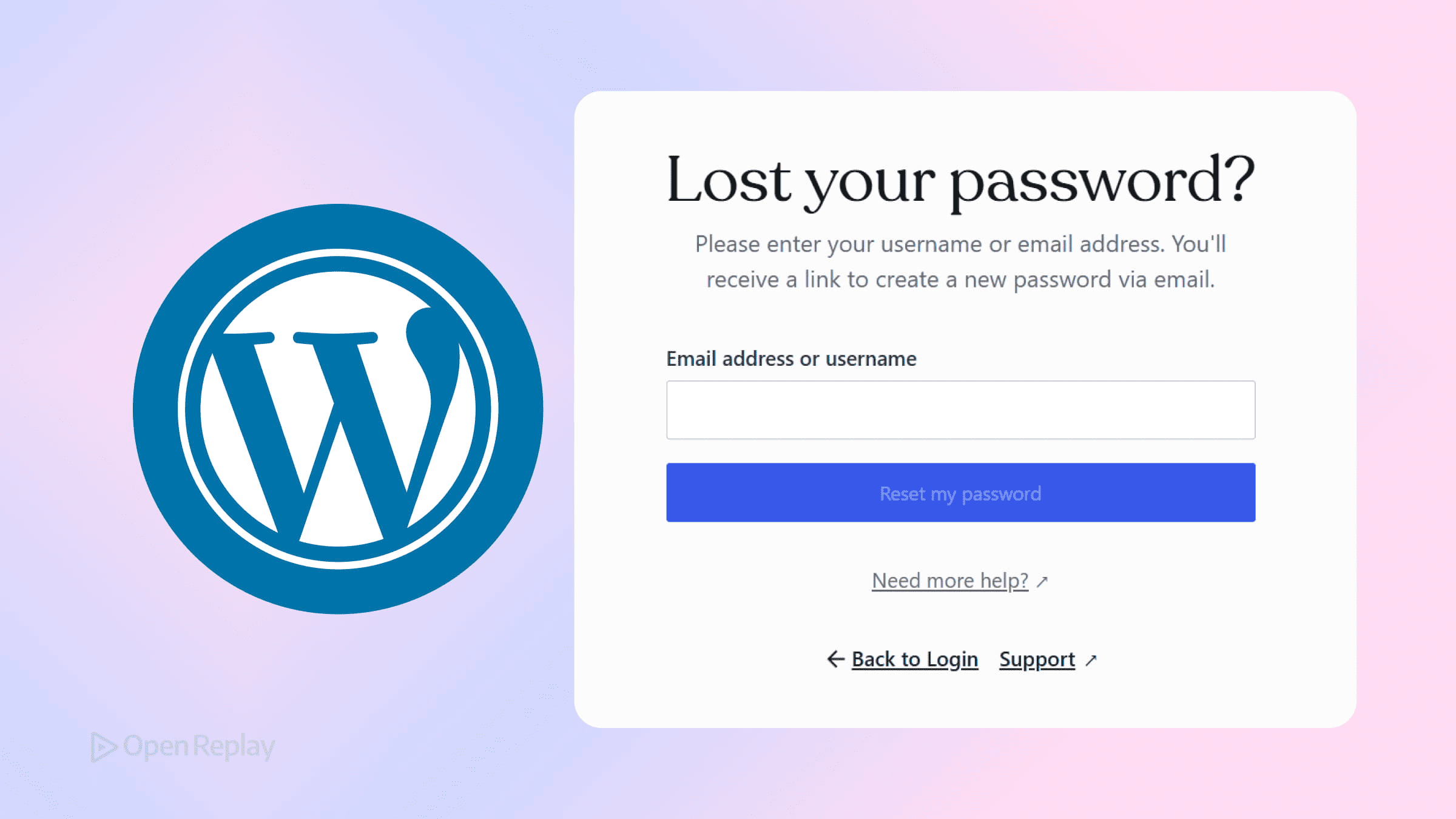
Losing access to your WordPress admin account is frustrating, but it’s a solvable problem. Whether you forgot your password, your reset email isn’t arriving, or you’re locked out of a site with no working mail server, there’s a method that fits your situation. This guide covers four reliable approaches to resetting a WordPress admin password — ordered from simplest to most technical.
Key Takeaways
- Always start with the simplest method available: dashboard reset if you’re logged in, or the “Lost your password?” link if you can receive email.
- WP-CLI is the fastest and safest recovery option for anyone with SSH access, since it uses WordPress’s own hashing internals.
- phpMyAdmin with an MD5 value is a last-resort recovery method; WordPress will automatically upgrade the hash to its current standard on your next login.
- After regaining access, audit your user list and enable two-factor authentication to prevent future lockouts.
Quick Method Selector
| Your situation | Best method |
|---|---|
| You’re logged in | Dashboard reset |
| You can receive email | Lost password link |
| You have SSH access | WP-CLI |
| No email, no SSH | phpMyAdmin |
Method 1: Reset From the WordPress Dashboard
Use this when: You’re already logged in and just want to update your password.
- Go to Users → Profile in the admin menu.
- Scroll to the Account Management section.
- Click Set New Password. WordPress generates a strong password automatically.
- Replace it with your own if preferred, then click Update Profile.
This is the cleanest approach. No database access, no tools — just a standard password update through the interface.
Method 2: Use the “Lost Your Password?” Link
Use this when: You’re locked out but can receive email at the address on your account.
- Go to
yoursite.com/wp-login.php. - Click Lost your password?
- Enter your username or registered email address.
- Check your inbox for the reset link and follow it.
- Set a new password and log in.
If the email never arrives, check your spam folder first. If your site isn’t configured to send email reliably, consider installing WP Mail SMTP — but for immediate access, skip to Method 3 or 4.

Discover how at OpenReplay.com.
Method 3: WP-CLI Password Reset (Recommended for Developers)
Use this when: You have SSH access to the server. This is the fastest and most reliable way to recover a WordPress admin account without touching the database directly.
# List users to confirm the username or ID
wp user list

# Reset by username
wp user update admin --user_pass="YourNewPassword123!"

# Or reset by user ID
wp user update 1 --user_pass="YourNewPassword123!"
WP-CLI handles password hashing correctly using WordPress’s own internals, so there’s no need to generate hashes manually. You can review the official WP-CLI user update documentation for additional options.
Security note: Passwords passed as inline arguments can appear in shell history or process logs. Prefer prompt-based workflows or generated passwords where possible, especially on shared systems.
Method 4: Reset via phpMyAdmin (Database Recovery)
Use this when: You have no email access and no SSH, but you can reach phpMyAdmin through your hosting control panel.
- Open phpMyAdmin and select your WordPress database.
- Open the
wp_userstable (the prefix may differ — checkwp-config.phpfor$table_prefix). - Find your admin user and click Edit.
- In the
user_passfield, clear the existing value. - Type your new password in plain text, then select MD5 from the function dropdown.
- Click Go to save.
Important context: Modern WordPress stores passwords using stronger hashing algorithms such as bcrypt. Writing an MD5 hash directly is a recovery technique, not a preferred workflow. WordPress will detect the MD5 format on your next login and automatically upgrade the hash to its current standard. Change your password again through the dashboard afterward to ensure it’s stored correctly.
You can also review the official WordPress password reset documentation for alternative recovery methods.
After Regaining Access
Once you’re back in, take a few minutes to:
- Change your password again through the dashboard if you used a database method.
- Verify no unauthorized admin accounts were added under Users → All Users.
- Consider enabling two-factor authentication with a plugin like WP 2FA.
Conclusion
Locked-out situations are rarely permanent. Start with the simplest method available to you, and work down the list only as needed. WP-CLI is the most efficient path for anyone with server access, while phpMyAdmin remains the reliable fallback when you’re working without it. Whichever route you take, follow up with a proper dashboard reset and a quick security audit to make sure your account stays yours.
FAQs
Why doesn't WordPress accept the MD5 hash I generated outside phpMyAdmin?
The MD5 trick works only when WordPress reads a raw MD5 string from the user_pass column and recognizes it as a legacy hash. If you paste a hash without selecting the MD5 function in phpMyAdmin, or if the value has extra whitespace or quotes, WordPress treats it as an invalid legacy hash. Always paste the plain password and select MD5 from the function dropdown.
Is it safe to reset a WordPress password through the database in production?
It's safe for one-time recovery, but not as a routine. Direct database edits bypass WordPress hooks, so plugins that track password changes or enforce policies won't run. After regaining access, log in and reset the password again through the dashboard so the proper bcrypt hash is stored and any security plugins record the event correctly.
What if WP-CLI returns 'Error: This does not seem to be a WordPress installation'?
WP-CLI must be run from the WordPress root directory, where wp-config.php lives. Either cd into that directory first or pass the path explicitly with the --path flag, for example: wp user update admin --user_pass='NewPass123!' --path=/var/www/html. Also confirm the system user running WP-CLI has read access to wp-config.php.
How can I prevent getting locked out of WordPress admin in the future?
Store admin credentials in a password manager, keep a secondary administrator account in case the primary one is compromised, and configure a reliable SMTP service so reset emails actually arrive. Enabling two-factor authentication adds protection, but pair it with backup codes stored offline so a lost device doesn't lock you out of recovery.
Gain Debugging Superpowers
Unleash the power of session replay to reproduce bugs, track slowdowns and uncover frustrations in your app. Get complete visibility into your frontend with OpenReplay — the most advanced open-source session replay tool for developers.
Star on GitHub12k