Smooth Scrolling with CSS scroll-behavior
Use CSS scroll-behavior: smooth for anchor links, fix fixed header overlap with scroll-margin-top, and keep motion accessible.

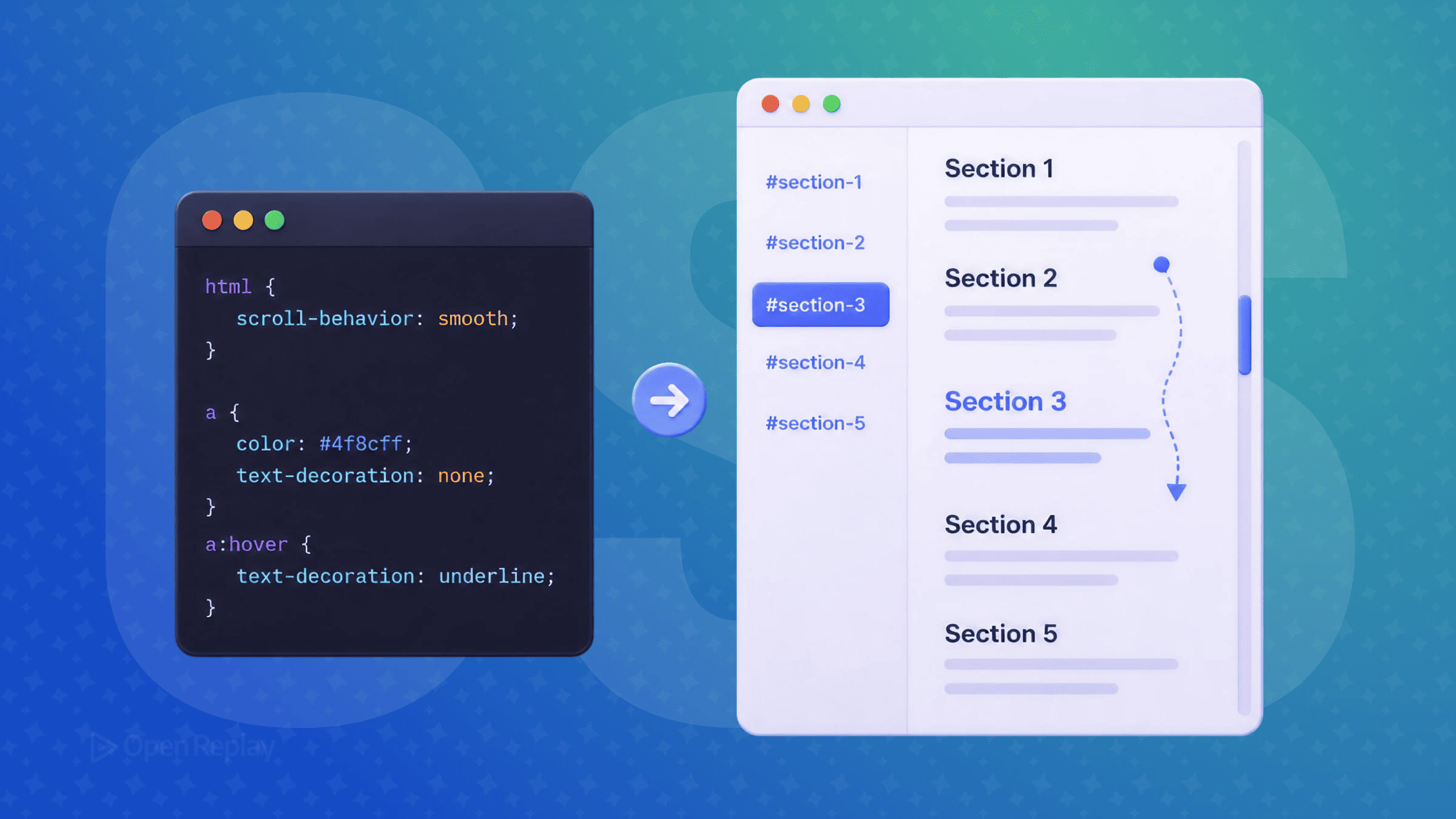
Clicking an anchor link and watching the page jump instantly to a section feels abrupt. It disorients users, breaks reading flow, and makes in-page navigation feel unpolished. The fix is a single CSS property — no JavaScript library required.
Key Takeaways
- The
scroll-behavior: smoothCSS property enables animated scrolling for anchor links and programmatic scroll APIs without any JavaScript. - Apply it to the
htmlelement, notbody, so the property correctly propagates to the viewport. - Browser-controlled easing and duration cannot be customized through CSS — reach for JavaScript only when you need fine-grained control.
- Use
scroll-margin-topto prevent fixed headers from covering anchor targets. - Wrap the rule in a
prefers-reduced-motion: no-preferencemedia query to respect accessibility preferences.
What Is scroll-behavior and How Does It Work?
The scroll-behavior CSS property controls how a scrolling container moves when scrolling is triggered programmatically — through anchor links, hash navigation, or JavaScript scroll APIs like window.scrollTo() or element.scrollIntoView().
It accepts two values:
auto— the default. Scrolls instantly with no animation.smooth— animates the scroll using a browser-defined easing function and duration.
One important clarification: scroll-behavior does not affect scrolling triggered by the user’s mouse wheel, trackpad, or scrollbar drag. It only applies to anchor-triggered and programmatic scrolling.
The easing and duration are controlled entirely by the browser. You cannot customize them with CSS alone. If you need a specific duration or custom easing curve, you’ll need a JavaScript-based solution.
Adding CSS Smooth Scrolling to Your Page
Apply scroll-behavior: smooth to the html element to enable smooth scrolling navigation across the entire page:
html {
  scroll-behavior: smooth;
}
Use html, not body. When set on the root element, the property applies to the viewport. Setting it on body does not propagate to the viewport — a common source of confusion when smooth scrolling isn’t working.
This single declaration handles all anchor link scrolling automatically. No JavaScript, no dependencies.
Practical Use Cases
Table of contents navigation:
<nav>
  <a href="#intro">Introduction</a>
  <a href="#usage">Usage</a>
  <a href="#examples">Examples</a>
</nav>
Back to top button:
<a href="#top">↑ Back to top</a>For the back-to-top link to land at the very top, make sure an element with id="top" exists at the start of the page, or use href="#" as a fallback. Both patterns work immediately once scroll-behavior: smooth is set on html.
Handling Fixed Headers with scroll-margin-top
If your layout includes a fixed header, anchor targets will scroll partially behind it. Fix this with scroll-margin-top:
:target {
  scroll-margin-top: 80px; /* match your header height */
}
For broader coverage — including programmatic scrolling to elements that aren’t the current :target — apply the rule directly to the section elements themselves:
section[id] {
  scroll-margin-top: 80px;
}
This offsets where the browser lands when navigating to a targeted element — no JavaScript needed.

Discover how at OpenReplay.com.
Accessibility: Respecting prefers-reduced-motion
Some users experience motion sickness or vestibular discomfort triggered by animated scrolling. Always respect the prefers-reduced-motion media query:
@media (prefers-reduced-motion: no-preference) {
  html {
    scroll-behavior: smooth;
  }
}
This pattern enables smooth scrolling only for users who haven’t opted out of motion in their OS settings. It’s the recommended approach for accessible scrolling UX.
Browser Support
scroll-behavior has universal support across all modern browsers — Chrome 61+, Firefox 36+, Edge 79+, Safari 15.4+, and Opera 48+. Global support is around 95%, so no polyfill is needed for current projects.
CSS vs. JavaScript: Which Should You Use?
| Need | Best Approach |
|---|---|
| Simple anchor link scrolling | CSS |
| Custom duration or easing | JavaScript |
| Conditional or logic-driven scrolling | JavaScript |
For most in-page navigation scenarios — documentation sites, landing pages, portfolios — CSS is sufficient and preferable. Less code, no dependencies, native browser performance.
Quick Implementation Checklist
- ☐ Apply
scroll-behavior: smoothtohtml, notbody - ☐ Wrap it in
prefers-reduced-motion: no-preference - ☐ Add
scroll-margin-topfor fixed header layouts - ☐ Test anchor links and keyboard navigation
- ☐ Verify behavior on iOS Safari
Conclusion
CSS smooth scrolling is one of those improvements that costs almost nothing to implement and immediately makes in-page navigation feel more intentional. One declaration, properly placed, covers the majority of real-world use cases without touching JavaScript.
FAQs
Why doesn't scroll-behavior smooth work when I set it on the body element?
The scroll-behavior property must be set on the scrolling container that owns the viewport, which is the html element. When applied to body, the value does not propagate to the viewport-level scroller, so anchor link scrolling falls back to the default instant jump. Move the rule to html and the smooth animation will work as expected.
Can I control the speed or easing of CSS smooth scrolling?
No. The animation duration and easing curve are determined entirely by the browser and cannot be customized through CSS. If your design requires a specific speed or a custom easing function, you need a JavaScript solution using window.scrollTo with behavior smooth combined with custom animation logic, or a small library that handles timing manually.
Does scroll-behavior smooth affect mouse wheel and touchpad scrolling?
No. The property only applies to programmatic and anchor-triggered scrolling, such as clicking a hash link, calling scrollIntoView, or invoking window.scrollTo. User-initiated scrolling through the mouse wheel, trackpad gestures, scrollbar drag, or keyboard arrow keys remains unaffected and continues to use the browser's native scroll behavior.
How do I prevent a fixed header from covering my anchor target?
Use the scroll-margin-top property on the target element with a value equal to your header height. For example, setting scroll-margin-top to 80px on section elements with an id offsets the scroll landing position so the section appears below the fixed header instead of being hidden behind it. No JavaScript or extra markup is required.
Gain control over your UX
See how users are using your site as if you were sitting next to them, learn and iterate faster with OpenReplay — the open-source session replay tool for developers. Self-host it in minutes, and have complete control over your customer data.
Star on GitHub12k