Creating a Copy Button for Code Blocks
Build a copy button for code blocks with the Clipboard API, using textContent, try/catch feedback, and accessible aria-labels.

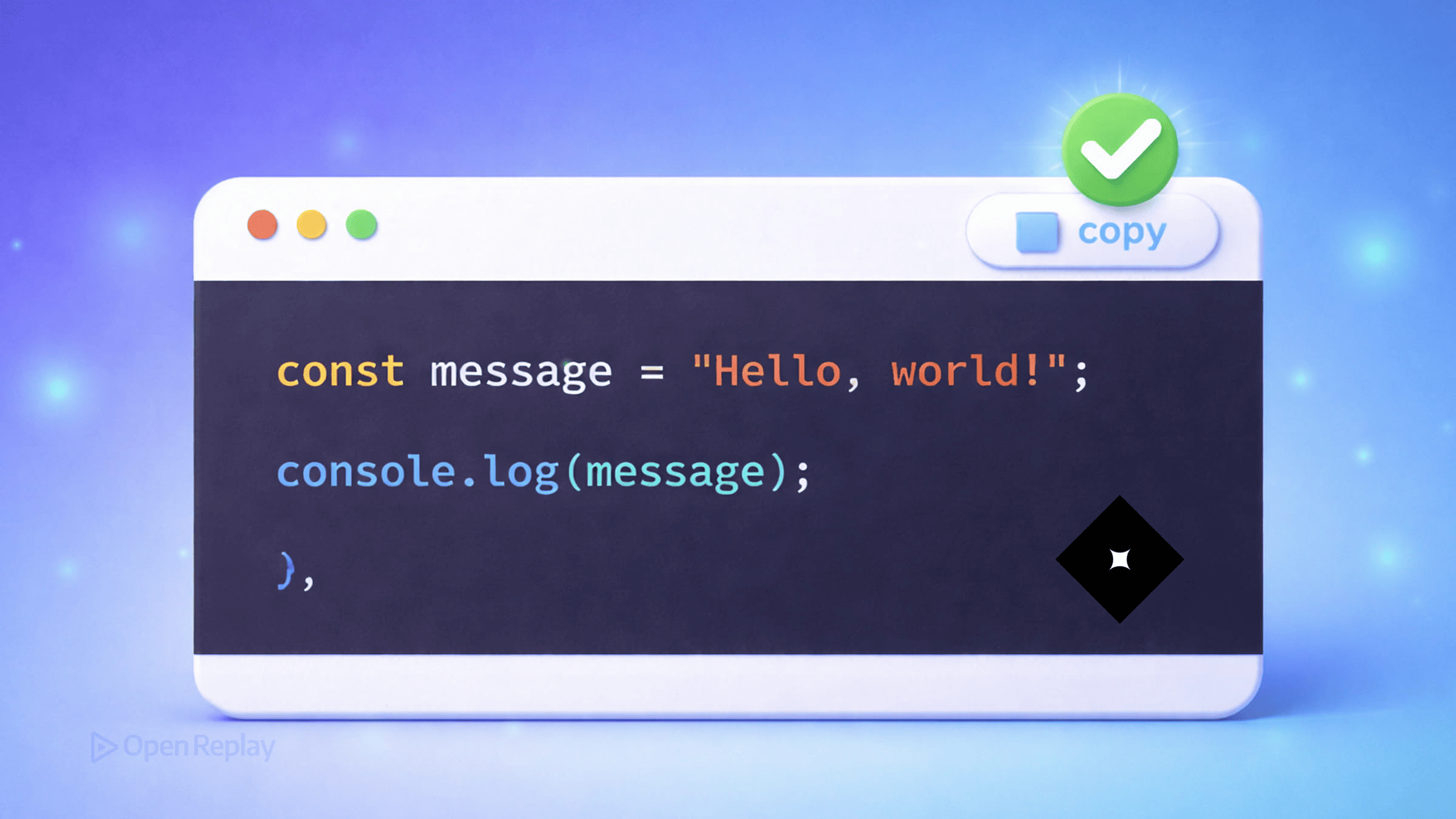
If you’ve ever watched someone struggle to manually highlight and copy a code snippet — or experienced it yourself — you already know why a copy button for code blocks matters. It’s a small UI detail that makes a real difference, especially for users navigating with keyboards, voice commands, or touch screens.
This article walks you through building a clean, reliable copy-code-snippet UI using the modern Clipboard API — no libraries required.
Key Takeaways
- Use
navigator.clipboard.writeText()for a modern, promise-based copy implementation that requires a secure context (HTTPS or localhost) and a user-initiated event. - Extract code with
textContent, notinnerHTML, to avoid copying syntax-highlighter<span>wrappers along with the actual code. - Wrap the call in a
try/catchblock to handle permission errors and provide clear visual feedback to users. - Improve accessibility by adding an
aria-labelto the button, particularly when icons replace text labels. - The deprecated
document.execCommand('copy')should only be used as a last-resort fallback for legacy environments.
How the Clipboard API writeText Method Works
The modern approach to copying to the clipboard in JavaScript is navigator.clipboard.writeText(). It’s promise-based, asynchronous, and supported in every current browser.
Two things to know before you use it:
- It requires a secure context. The Clipboard API only works over HTTPS. On
localhost, plain HTTP is also treated as secure, so it’s fine for development. - It must be triggered by a user action. Calling it inside a
clickevent handler satisfies this requirement automatically.
await navigator.clipboard.writeText("your text here");That’s the core of the whole feature.
Extracting Text from a Code Block
Your HTML likely looks something like this:
<pre><code>const greeting = "hello";</code></pre>To grab the raw text, use textContent — not innerHTML. Using innerHTML would copy HTML tags along with the code, which is never what you want.
const code = document.querySelector("pre code").textContent;If your code blocks use a syntax highlighter like Prism.js or Highlight.js, the highlighter wraps tokens in <span> elements. textContent strips all of that out and returns only the plain text, which is exactly what should land on the user’s clipboard.

Discover how at OpenReplay.com.
Building the Copy Button for Code Blocks
Here’s a complete, working implementation:
document.querySelectorAll("pre").forEach((block) => {
  const button = document.createElement("button");
  button.type = "button";
  button.textContent = "Copy";
  button.setAttribute("aria-label", "Copy code to clipboard");

  button.addEventListener("click", async () => {
    const code = block.querySelector("code")?.textContent ?? "";

    try {
      await navigator.clipboard.writeText(code);
      button.textContent = "Copied!";
      setTimeout(() => (button.textContent = "Copy"), 2000);
    } catch (err) {
      console.error("Copy failed:", err);
      button.textContent = "Failed";
      setTimeout(() => (button.textContent = "Copy"), 2000);
    }
  });

  block.style.position = "relative";
  block.appendChild(button);
});
A few things worth noting here:
aria-labelgives the button an accessible name for screen readers, especially important if you later swap the text for an icon.e.currentTargetis safer thane.targetwhen your button contains child elements like an SVG icon —e.targetcan point to the icon itself rather than the button. (You can access it by adding theeventparameter to the click handler if needed.)- The
try/catchblock handles permission denials or unexpected failures gracefully, giving users visible feedback instead of a silent error.
What About Older Browsers?
navigator.clipboard has excellent support across modern browsers. If you need to support older environments, document.execCommand('copy') exists as a fallback — but it’s deprecated and unreliable. Use it only as a last resort, behind a feature check:
if (!navigator.clipboard) {
  // legacy fallback using document.execCommand('copy')
}
For most documentation sites and developer tools built today, you can safely rely on the Clipboard API alone.
Conclusion
A working copy button for code blocks comes down to three things: grab the text with textContent, write it with navigator.clipboard.writeText(), and give the user clear feedback on success or failure. Keep the button accessible with an aria-label, handle errors explicitly, and you have a production-ready implementation in under 30 lines of plain JavaScript.
FAQs
Why doesn't the Clipboard API work on my local development server?
The Clipboard API requires a secure context, which means HTTPS in production. However, browsers treat localhost as secure by default, so plain HTTP works fine during development. If you're testing on a local network IP like 192.168.x.x, the API will fail because that's not considered secure. Use localhost or set up an HTTPS dev server instead.
Can I copy text without a user clicking a button?
No. The Clipboard API requires user activation, meaning the call must happen inside an event handler triggered by the user, such as click, keydown, or pointerup. Calling writeText on page load or inside a setTimeout will fail silently or throw a permission error. This restriction prevents malicious sites from hijacking the clipboard without consent.
How do I copy code while preserving line breaks and indentation?
The textContent property already preserves whitespace, including line breaks and indentation, exactly as written in your HTML. As long as your pre and code elements contain properly formatted source code, the copied text will match. Avoid using innerText, which can normalize whitespace based on CSS rendering and produce inconsistent results across browsers.
What's the difference between e.target and e.currentTarget in the click handler?
e.target refers to the element that actually received the click, which could be a child element like an SVG icon inside your button. e.currentTarget always refers to the element the event listener was attached to, in this case the button itself. Using currentTarget prevents bugs when users click on nested icons or spans within the button.