
Inspecting HTTPS Requests with HTTP Toolkit

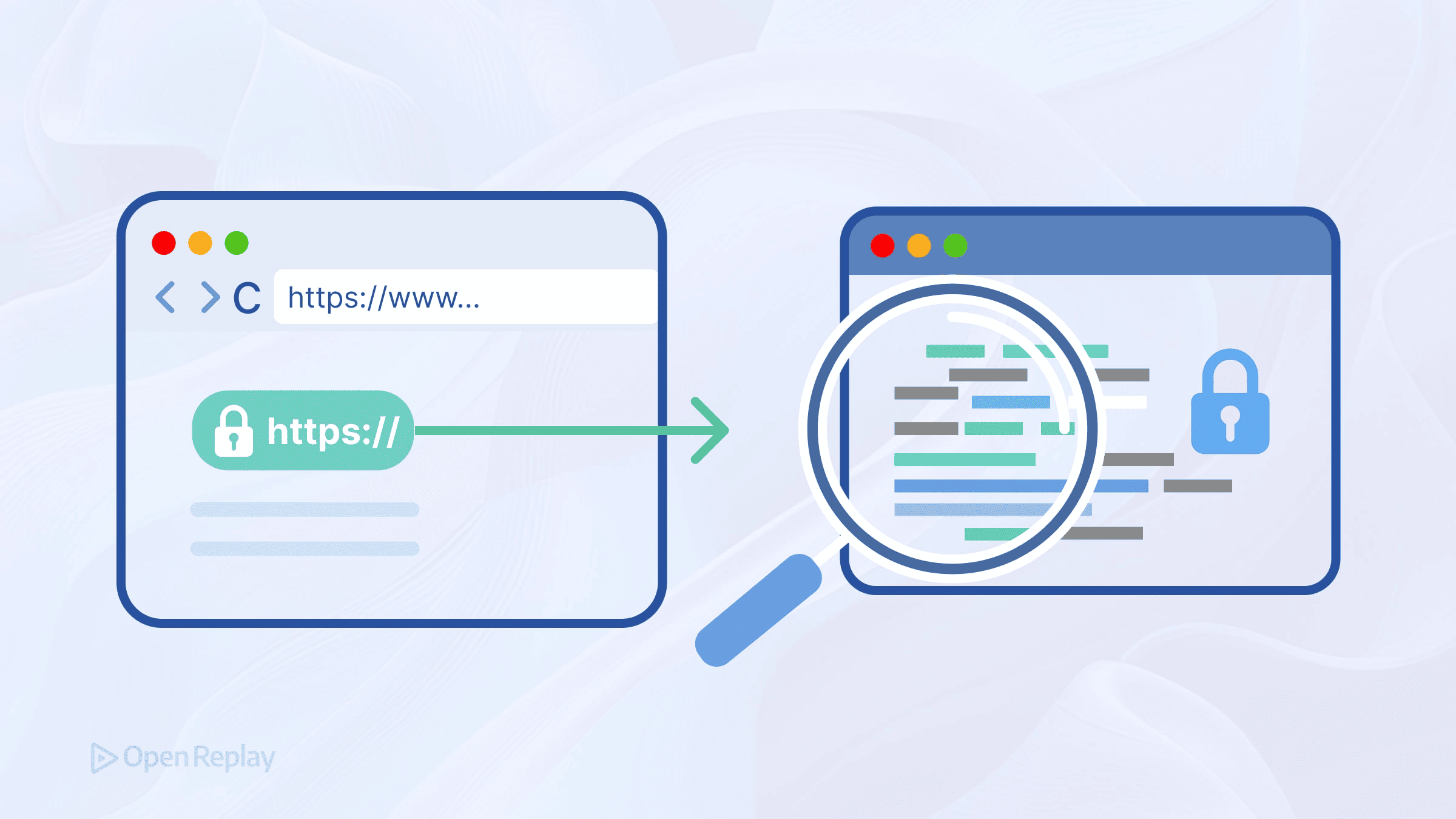
When your API call fails silently or authentication breaks without explanation, browser DevTools often fall short. You need to see the actual encrypted traffic leaving your application. HTTP Toolkit provides exactly this capability—a straightforward way to intercept HTTPS traffic and inspect what’s really happening on the wire.
This article covers how HTTP Toolkit works as a local proxy, what you need to know about protocol support, and the practical workflows frontend developers use for debugging HTTPS requests.
Key Takeaways
- HTTP Toolkit operates as a man-in-the-middle proxy, decrypting HTTPS traffic by using a trusted root certificate authority.
- The tool fully supports HTTP/1.1, HTTP/2, and WebSocket interception, with HTTP/3 falling back to earlier protocols.
- Browser interception works automatically through preconfigured instances, while mobile and desktop apps require manual proxy and certificate configuration.
- Beyond passive inspection, HTTP Toolkit allows you to set breakpoints, modify requests, and test different API responses without backend changes.
How HTTP Toolkit Works as a MITM Proxy
HTTP Toolkit operates as a man-in-the-middle (MITM) proxy. It sits between your client (browser, mobile app, or desktop application) and the server, intercepting all traffic passing through.
For HTTP traffic, this is straightforward. HTTPS inspection requires an additional step: trusting HTTP Toolkit’s generated root certificate authority (CA). When you trust this certificate, the tool can decrypt TLS traffic, display it in readable form, then re-encrypt it before forwarding to the destination server.
The certificate trust happens automatically for browsers launched through HTTP Toolkit. For other applications, you’ll need to configure the proxy settings and install the certificate manually.
Protocol Support and Limitations
HTTP Toolkit fully supports HTTP/1.1 and HTTP/2 interception. These protocols cover the vast majority of frontend debugging scenarios.
HTTP/3 (QUIC) presents a different situation. When a client would normally use HTTP/3, HTTP Toolkit forces a fallback to HTTP/2 or HTTP/1.1. Native QUIC interception isn’t available yet. For most frontend debugging work, this limitation rarely matters—the request and response data remain identical regardless of transport protocol.
The tool also handles WebSocket connections, letting you inspect real-time communication alongside standard HTTP traffic.
Connecting Browsers and Apps
Browser Interception
The simplest workflow starts from HTTP Toolkit’s dashboard. Click the browser option (Chrome, Firefox, or Edge), and HTTP Toolkit launches a preconfigured instance with proxy settings and certificate trust already configured.
Every request from that browser window appears in HTTP Toolkit’s View tab. You see the full request—method, URL, headers, and body—alongside the complete response.
Mobile App Traffic
Mobile debugging requires more setup. For Android devices, you have several options:
- ADB connection: Connect a device via USB and let HTTP Toolkit configure it
- Manual proxy: Configure your device’s WiFi settings to route through HTTP Toolkit
- Rooted devices: Install the certificate at the system level for broader coverage
Android’s security model creates friction here. Apps targeting Android 7+ only trust user-installed certificates if explicitly configured to do so. Many apps ignore user CA certificates entirely, meaning you’ll only see traffic from apps that haven’t restricted certificate trust.
Certificate pinning adds another layer. Apps that pin specific certificates will reject HTTP Toolkit’s certificate regardless of system trust settings. Some workarounds exist (Frida scripts, rooted devices with system CA installation), but they’re outside HTTP Toolkit’s core functionality.

Discover how at OpenReplay.com.
Desktop Applications
For Electron apps and other desktop software, configure the application to use HTTP Toolkit as its proxy. The exact method varies by application—some respect system proxy settings, others require environment variables or command-line flags.
Viewing and Modifying Traffic
Once traffic flows through HTTP Toolkit, the View page shows every intercepted exchange. The interface splits into a request list and a details pane.
The details pane breaks down each exchange into collapsible sections: request headers, request body, response headers, response body, and timing information. Body content is automatically formatted based on content type—JSON gets syntax highlighting, and minified JavaScript expands for readability.
For frontend debugging, the most useful features include:
- Filtering: Narrow down to specific hosts, methods, or status codes
- Search: Find requests by URL pattern or content
- Export: Generate code snippets in fetch, axios, curl, and other formats
Beyond passive inspection, HTTP Toolkit supports breakpoints and rules. You can pause requests before they reach the server, modify headers or bodies, then forward the altered request. This helps test how your application handles different API responses without changing backend code.
Practical Frontend Debugging Workflows
HTTPS inspection with HTTP Toolkit shines in several scenarios:
- Authentication debugging: Inspect token headers, cookie values, and OAuth flows
- API integration issues: See exactly what payload your app sends versus what the server expects
- Third-party script analysis: Monitor what analytics and advertising scripts transmit
- CORS troubleshooting: Examine preflight requests and response headers
The tool captures traffic that browser DevTools might miss—requests from service workers, background fetches, or scripts that detect open developer tools.
Conclusion
HTTP Toolkit gives frontend developers reliable HTTPS inspection across browsers, mobile apps, and desktop applications. The certificate trust requirement enables decryption, while the fallback behavior for HTTP/3 ensures compatibility with modern infrastructure. For debugging API calls, auth flows, and network behavior, it provides visibility that browser tools alone can’t match.
FAQs
Apps targeting Android 7 and above only trust user-installed certificates if their network security configuration explicitly allows it. Many apps restrict certificate trust to system certificates or use certificate pinning, which rejects any certificate not matching their expected values. For these apps, you may need a rooted device with system-level CA installation.
HTTP Toolkit does not natively intercept HTTP/3 (QUIC) traffic. Instead, it forces clients to fall back to HTTP/2 or HTTP/1.1. This fallback is transparent for most debugging purposes since the request and response data remain the same regardless of the underlying transport protocol.
Yes. HTTP Toolkit supports breakpoints and rules that let you pause requests, modify headers or body content, and forward the altered request. You can also intercept responses and change them before they reach your application, which is useful for testing error handling and edge cases.
HTTP Toolkit captures traffic that DevTools might miss, including requests from service workers, background fetches, and scripts that detect open developer tools. It also works across browsers, mobile apps, and desktop applications, providing a unified view of all network traffic from multiple sources.
Understand every bug
Uncover frustrations, understand bugs and fix slowdowns like never before with OpenReplay — the open-source session replay tool for developers. Self-host it in minutes, and have complete control over your customer data. Check our GitHub repo and join the thousands of developers in our community.
