Why Your z-index Isn't Working
Debug why z-index is not working by tracing stacking contexts in DevTools. Identify the ancestor trapping an element and fix modals, dropdowns, and sticky headers.

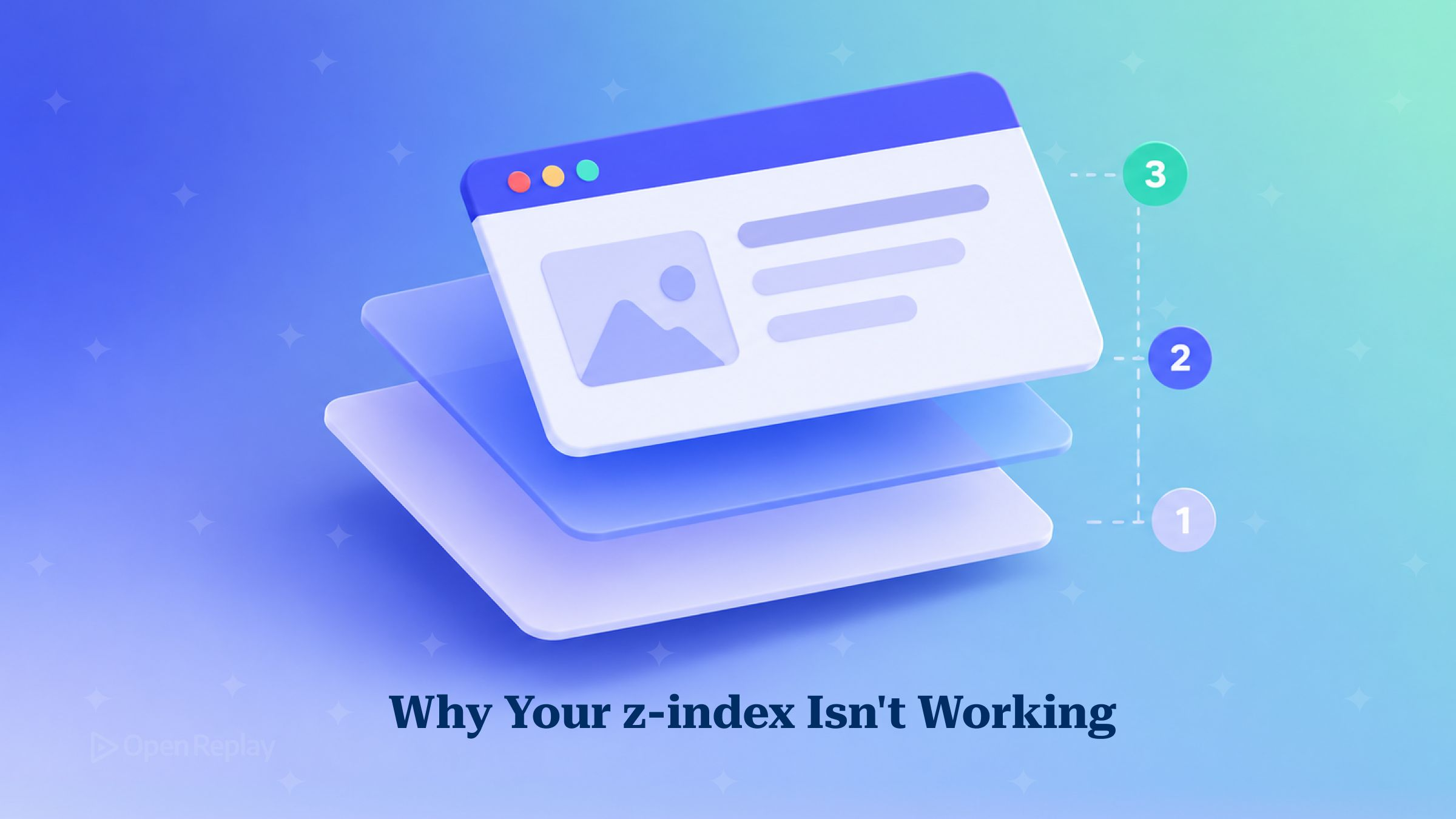
If an element with z-index: 9999 still renders behind one set to 2, an ancestor of the first element has created a stacking context, and a z-index never reaches outside the context it belongs to.
You’ve already tried 99999. Then 2147483647. The modal still sits under the header, and nothing in the Styles panel looks wrong.
For the theory behind stacking order, see CSS: Demystifying the z-index property. This guide covers the debugging side: how to see stacking contexts in DevTools, how to walk up the DOM until you find the ancestor that traps your element, and how to fix each of the common cases without making the number bigger.
Key Takeaways
- A z-index value only competes with elements in the same stacking context, so
9999loses to2when an ancestor of the first element has its own stacking context. - When a higher z-index loses, compare the two elements’ ancestors that share a common parent. Their own values don’t settle it.
- Any
transform,filter, orclip-pathother thannone, or anopacitybelow 1, creates a new stacking context even when the element has nopositionand noz-index. - A dropdown that gets cut off at its card’s edge is usually being clipped by
overflow, and no z-index value will fix that. - Moving an overlay to be a direct child of
<body>takes it out of every ancestor’s stacking context.
What Is the One Rule Behind z-index Not Working?
A z-index only orders an element against the other members of its own stacking context. A stacking context is a group that the browser paints as one unit. MDN’s stacking context guide lists the properties that create one. When an ancestor creates a context, the child’s z-index only applies inside that ancestor. So if the ancestor sits below another context, the child stays below it too, whatever number you give it.
Here is the smallest version of the bug:
<header style="position: fixed; top: 0; z-index: 2; background: tomato;">Header</header>
<main style="opacity: 0.99;">
  <div class="modal" style="position: fixed; inset: 0; z-index: 9999; background: rgb(0 0 0 / 0.6);">
    Modal
  </div>
</main>
The modal loses because main has opacity: 0.99, which makes main a stacking context. Inside main, the modal’s 9999 works fine. But main itself is compared with the header at the root level, and the header’s 2 is higher. When a higher z-index loses, look at the ancestors: find the closest ancestor of each element that shares a common parent with the other, and compare those two.
How Do You See Stacking Contexts in DevTools?
Chromium DevTools provides visual tools for investigating layering problems, which can be faster than guessing. Both Chrome and Edge open these views from the Command Menu, using Command+Shift+P on macOS or Control+Shift+P on Windows and Linux. For more DevTools panels that often go unused, see Hidden Gems in Chrome DevTools.
Chrome: The Layers Panel
- Open DevTools and press Command+Shift+P or Control+Shift+P.
- Type
Layersand choose Show Layers panel. You can also go to More options > More tools > Layers panel. - Rotate the canvas and select a layer to see its details, including why the browser gave it its own layer.
The Layers panel shows a tree of the page’s layers on the left and a 3D diagram of them beside it. Use the panel to inspect how the browser has separated the page into compositing layers, but remember that these are not the same as stacking contexts. To find the ancestor responsible for a stacking context, use the walk-up method below. The panel also comes up in debugging janky CSS animations.
Edge: 3D View
- Open the Command Menu and run Show 3D View.
- Select the Z-index tab.
- Select the Show all option to see positioned elements alongside the stacking contexts.
Edge’s 3D View has three tabs: Composited Layers, Z-index, and DOM. The Z-index tab draws the page’s stacking contexts in 3D, so a trapped element shows up nested inside a lower slab.
If you want a tree view of stacking contexts in Chrome or Firefox, the CSS Stacking Context inspector extension adds a panel showing the context tree, plus an Elements sidebar that explains why the selected element creates a context. Its documentation says it can’t yet look inside third-party iframes.
The Ancestor Walk-Up Method
The walk-up method finds the trapping ancestor with nothing more than the Elements panel and the Computed pane. It works the same in every browser.
- Select the element that is losing (the modal, the menu).
- In Elements, click its parent.
- Open the Computed pane and type each property from the checklist below into the filter box:
transform,opacity,filter,position,z-index, and so on. - If none of them create a context, move up one level and repeat until you reach
<html>. - Note the first ancestor that creates a context.
- Repeat steps 1 to 5 starting from the element that is winning.
- The two chains meet at a shared ancestor. Its two children on those chains are the elements that actually get compared.
If you’re working from a bug report rather than a local repro, session replay shows the symptom from the user’s side, such as a click landing on an invisible overlay or a menu opening behind content. That tells you which element to select in step 1.
Checklist: Properties That Create a Stacking Context
Check each ancestor against this table. One matching row is enough to trap its descendants.
| Property | Creates a context when | What to look for in Computed |
|---|---|---|
position: absolute / relative | z-index is not auto | Both values set on the same element |
position: fixed / sticky | Always | position value alone |
opacity | Below 1 | Values like 0.99, often left over from a fade animation |
transform, scale, rotate, translate | Any value other than none | A matrix(...) value, including identity transforms |
filter, backdrop-filter | Other than none | blur(), drop-shadow() |
clip-path, perspective | Other than none | Any shape or length |
mask, mask-image, mask-border | Other than none | Image or gradient values |
will-change | It lists a property that would create a context if you set it | will-change: transform or opacity |
isolation | isolate | Explicit value |
contain | layout, paint, strict, or content | Common in virtualized lists |
| Flex or grid child | z-index is not auto | Parent’s display: flex or grid. No position needed |
MDN’s full list also includes mix-blend-mode other than normal, top-layer elements, and elements whose context-creating properties are animated with animation-fill-mode: forwards. MDN still lists container-type: size and inline-size too, but the CSS Working Group removed layout containment from container-type, so it no longer creates a stacking context. Chrome made that change in version 129, and Firefox and Safari have since followed.
Three Common Cases: Symptom, Cause, Fix
Modal Behind a Header
Symptom: the overlay dims the page, but the header stays bright on top of it. Cause: the modal is rendered inside a wrapper that has a transform, opacity, or a positioned z-index, and the header’s context outranks that wrapper. Fix: move the modal to <body> (see the fixes below).
Dropdown Clipped in a Card With a Transform
A dropdown inside a transformed card has one of two problems, stacking or clipping, so first decide which one you have. If the menu is painted behind the next card, that’s stacking: the transformed card is a context, and cards later in the DOM paint over it. Raise the open card:
.card.is-open { position: relative; z-index: 1; }If the menu is cut off at the card’s own edge, that’s clipping. Check overflow on the card and its ancestors. Any value other than visible clips the menu, and no z-index value will bring it back.
Sticky Element That Won’t Stay on Top
Symptom: cards slide over a sticky header when you hover or scroll. Cause: any element with position: fixed or sticky creates a context. With no z-index, though, it sits at level 0, and later siblings that create contexts (such as cards with hover transforms) paint over it because they come later in the DOM. Fix:
.site-header { position: sticky; top: 0; z-index: var(--z-sticky); }If the header doesn’t stick at all, the cause is usually an ancestor’s overflow. For a full sticky header build, see Building a responsive sticky navbar with CSS.
Three Ways to Fix a Trapped Element
Every fix for a trapped element changes the stacking context structure instead of the z-index number: move the element, move the property, or deliberately put a boundary where you want it.
Move the element in the DOM. An overlay that is a direct child of <body> has no ancestor context above it, so its z-index is compared at the root. This is why portals work so well for overlays that need to cover the whole page:
const modal = document.querySelector('.modal');

function openModal() {
  document.body.appendChild(modal); // escape every ancestor context
  modal.hidden = false;
}
Remove or relocate the property. Andy Blum at Lullabot described a case where a right-to-left layout mirrored a background-video container with a transform, which buried the video’s play/pause button. He fixed it by moving the transform from the container to the video iframe:
/* Before: the wrapper becomes a context */
[dir="rtl"] .hero { transform: scaleX(-1); }

/* After: only the media is mirrored */
[dir="rtl"] .hero iframe { transform: scaleX(-1); }
Add isolation on purpose. Setting isolation: isolate on a component’s root creates a context deliberately, so every z-index inside the component stays local:
.card { isolation: isolate; }
.card .badge { position: absolute; z-index: 1; } /* never competes with the site header */
Prevent It With a z-index Scale
A z-index of 9999 almost always means someone never found the stacking context, not that they needed a bigger number. Replace one-off values with a small, documented scale:
:root {
  --z-base: 0;
  --z-dropdown: 100;
  --z-sticky: 200;
  --z-overlay: 300;
  --z-modal: 400;
  --z-toast: 500;
}
.modal { z-index: var(--z-modal); }
The z-index scale tokens only order elements that share a stacking context. That’s why they work best alongside portals for page-level layers and isolation: isolate on component roots.
Conclusion
A z-index that doesn’t work is almost always a stacking-context problem, not a problem with the number. The next time 9999 loses, leave the value alone. Open the Layers panel or 3D View to confirm what is painted where, then walk up from both elements with the checklist until the two chains meet. The two children of the shared ancestor are the elements being compared, and the fix belongs on one of them.
FAQs
Why does z-index have no effect at all on my element?
z-index only applies to positioned elements, meaning position set to relative, absolute, fixed, or sticky, and to flex or grid items. On an element with the default position: static that is not a flex or grid child, the browser ignores z-index entirely. Add position: relative so the value takes effect, then check whether an ancestor stacking context still limits it.
Does a dialog opened with showModal() escape stacking contexts?
Yes. Calling showModal() on a dialog element promotes it to the top layer, which sits above every stacking context in the document. Ancestor transforms and z-index values no longer affect its order. Popovers shown with showPopover() are promoted the same way. z-index has no effect inside the top layer: elements stack in the order they were promoted, so the most recently opened one appears on top.
Why is my position: fixed overlay positioned relative to its parent instead of the viewport?
An ancestor with a transform, perspective, or filter other than none becomes the containing block for fixed-position descendants. A fixed overlay inside it is then positioned and sized relative to that ancestor, not the viewport. The same property also creates a stacking context, so the overlay can sit behind other content and cover the wrong area at once. Moving the overlay to body fixes both problems.
Can a negative z-index put a child behind its parent?
Only when the parent does not create a stacking context. Inside a stacking context, the browser paints the context root's own background and borders first, then children with a negative z-index, then in-flow content. If the parent has an opacity below 1, a transform, or a positioned non-auto z-index, a child with z-index: -1 still paints above the parent's background, though below its normal content.
Gain control over your UX
See how users are using your site as if you were sitting next to them, learn and iterate faster with OpenReplay — the open-source session replay tool for developers. Self-host it in minutes, and have complete control over your customer data.
Star on GitHub12k