5 Version Managers Every Developer Should Know
Compare nvm, pyenv, rustup, mise, and SDKMAN! for version management, per-project pinning, CI parity, and the right tool for each runtime.

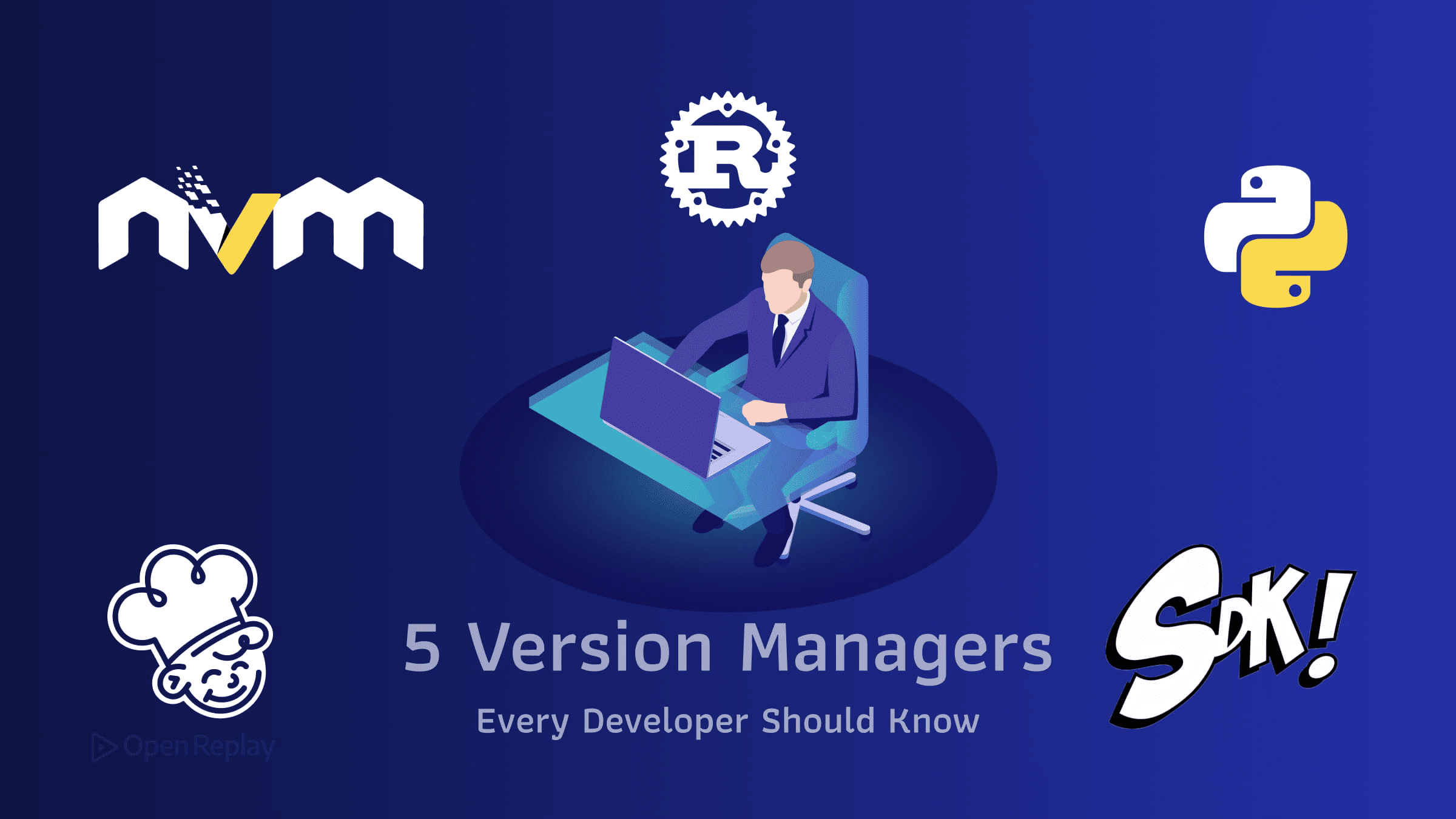
A version manager is a command-line tool that installs multiple versions of a language runtime on the same machine and switches between them automatically based on a per-project configuration file. The five worth knowing in 2026 — nvm, pyenv, rustup, mise, and SDKMAN! — cover the runtimes most full-stack developers touch: Node.js, Python, Rust, polyglot toolchains, and the JVM. This article maps each one to its strongest use case, shows the install command, and flags the gotcha you’ll hit in production.
If you’ve shipped frontend code, you’ve probably debugged an error that traced back to a Node version mismatch between a contributor’s laptop and CI. Version managers exist to make that class of bug impossible. The trick is knowing which tool to reach for in each ecosystem, and when a polyglot manager beats a language-specific one.
Key Takeaways
- A version manager installs multiple runtime versions in your home directory and switches between them automatically using a per-project config file like
.nvmrc,.tool-versions, ormise.toml. - Language-specific managers (nvm, pyenv, rustup) track new releases fastest; polyglot managers (mise, asdf) trade some of that immediacy for a unified workflow across every runtime a team uses.
- mise is a Rust-based rewrite of the asdf workflow, formerly released as
rtx; it reads.tool-versionsfor asdf compatibility and addsmise.tomlfor richer per-project configuration. - nvm activates Node through shell functions, not shims, which means it has no effect in non-interactive shells — a common cause of broken CI scripts.
- pyenv manages Python interpreter versions only; for isolated package sets per project, pair it with pyenv-virtualenv or use Python’s built-in
python -m venv.
Why use a version manager at all
System-wide language installs break in predictable ways. A package-manager upgrade swaps your Python minor version and breaks every project that pinned to the old one. A Node release bundled by Homebrew jumps a major version and node_modules resolution starts failing. A teammate runs Node 22, you run Node 26, and a package-lock.json regenerated on either machine produces a different dependency tree.
A version manager solves this by installing runtimes into your home directory, isolating each version, and reading a config file at the project root to activate the right one when you cd in. Committing that config file to version control is what turns version management from a personal preference into a team-wide reproducibility guarantee.
Frontend teams instrumenting production applications — including those using session replay tools like OpenReplay — routinely surface JavaScript errors that trace back to runtime mismatches between local development, CI, and production build environments. The config file is the fix.
Comparison: the five managers at a glance
| Tool | Ecosystem | OS Support | Install Method | Standout Feature |
|---|---|---|---|---|
| nvm | Node.js | macOS, Linux (nvm-windows is a separate project) | Install script (bash) | The default Node manager; reads .nvmrc |
| pyenv | Python | macOS, Linux (pyenv-win for Windows) | Install script or Homebrew | Builds Python from source; deep per-project pinning via .python-version |
| rustup | Rust | macOS, Linux, Windows | Official install script | Maintained by the Rust project; manages stable/beta/nightly channels |
| mise | Polyglot | macOS, Linux, Windows | Single binary | Reads .tool-versions (asdf-compatible) plus mise.toml for env vars and tasks |
| SDKMAN! | JVM (Java, Kotlin, Gradle, Maven, Scala, etc.) | macOS, Linux, Windows (WSL) | Install script (bash/zsh) | Manages JDK distributions from multiple vendors |
1. nvm — the Node.js default
nvm is the most widely used Node.js version manager. It installs Node versions into ~/.nvm, activates them through a shell function, and reads .nvmrc at the project root to pin the version a project expects.
# Install nvm (check the repo for the current script URL)
curl -o- https://raw.githubusercontent.com/nvm-sh/nvm/master/install.sh | bash

# Install and use Node.js 24
nvm install 24
nvm use 24

# Pin a project to Node 24
echo "24" > .nvmrc
nvm use      # reads .nvmrc automatically
Use nvm when you work primarily in Node and want the most documented, most-supported option in the ecosystem. Check the Node.js release schedule for the current LTS and active release lines.
Watch out: nvm activates versions through a shell function, not binaries on PATH. That means non-interactive shells — including many CI scripts and editor terminals — don’t pick up the right Node unless you source nvm.sh explicitly. The nvm README documents this directly. If this bites you regularly, the next two tools fix it.
Honorable mentions: fnm and Volta
fnm is a Rust-based Node version manager that installs shims rather than relying on shell functions. It starts faster than nvm, supports .nvmrc and .node-version files, and runs natively on Windows, macOS, and Linux. Drop-in replacement for most nvm workflows.
Volta takes a different angle: it pins the entire JS toolchain — Node, npm, Yarn, pnpm — per project, writing the pinned versions into package.json under a volta key. When you run a tool inside a project directory, Volta routes the call to the pinned version automatically. If your team’s pain point is “which package manager are we on this week,” Volta is purpose-built for it.
One ecosystem note: Corepack — the experimental shim that lets Node delegate to a project-specified package manager — is no longer planned to ship bundled with Node.js by default. Track the Corepack repository for the current status. Volta sidesteps the question entirely.
2. pyenv — Python interpreter management

Discover how at OpenReplay.com.
pyenv installs and switches between Python interpreter versions. It builds Python from source by default, which means you get exactly the version you ask for — not a distro-packaged variant — and you can install CPython, PyPy, and other implementations side by side.
# macOS via Homebrew
brew install pyenv

# Or the official installer
curl https://pyenv.run | bash

# Install Python 3.13 and set it globally
pyenv install 3.13.3
pyenv global 3.13.3

# Pin a project to Python 3.13.3
cd my-project
pyenv local 3.13.3   # writes .python-version
Use pyenv when you work across Python projects pinned to different minor versions, or when you need a Python build that your OS package manager doesn’t ship.
Watch out: pyenv manages Python interpreter versions only — it does not create or manage virtual environments. For isolated package sets per project, pair pyenv with pyenv-virtualenv, or activate the right interpreter with pyenv and then create a venv with Python’s built-in python -m venv .venv. Conflating the two is the most common pyenv mistake.
On Windows, pyenv proper does not run natively; use pyenv-win instead, or run pyenv inside WSL.
3. rustup — the official Rust toolchain manager
rustup is the official Rust toolchain installer, maintained by the Rust project itself. It manages stable, beta, and nightly channels, installs cross-compilation targets, and handles component installation (rustfmt, clippy, rust-analyzer) under a single CLI.
# Install rustup (one-liner from rustup.rs)
curl --proto '=https' --tlsv1.2 -sSf https://sh.rustup.rs | sh

# Default toolchain
rustup default stable

# Add a target for cross-compilation
rustup target add wasm32-unknown-unknown

# Install nightly alongside stable
rustup toolchain install nightly
Use rustup whenever you write Rust. It’s not optional — it’s the supported install path on rust-lang.org.
For per-project pinning, commit a rust-toolchain.toml file at the project root:
[toolchain]
channel = "1.83.0"
components = ["rustfmt", "clippy"]
targets = ["wasm32-unknown-unknown"]
When Cargo runs inside the project, rustup reads this file and uses the specified toolchain, downloading it on demand if it isn’t installed. The full schema is documented in the rustup book.
Watch out: the stable channel and a pinned rust-toolchain.toml solve different problems. stable floats to the latest stable release — fine for personal projects, surprising in CI when a new release changes a lint or codegen behavior. Pin the toolchain in any project where reproducible builds matter.
4. mise — the modern polyglot manager
mise (pronounced “meez”) is a Rust-based polyglot version manager that handles Node, Python, Ruby, Go, Java, and dozens of other runtimes through a single CLI. It was previously released as rtx and renamed to mise; the rename is documented in the project history. mise reads .tool-versions files for full compatibility with asdf and adds mise.toml for richer per-project configuration including environment variables, tasks, and tool sources.
# Install mise (macOS, Linux, WSL)
curl https://mise.run | sh

# Install runtimes
mise use --global node@24
mise use --global python@3.13
mise use --global rust@stable

# Pin a project (writes mise.toml)
cd my-project
mise use node@24 python@3.13
A minimal mise.toml looks like this:
[tools]
node = "24"
python = "3.13"

[env]
NODE_ENV = "development"

[tasks.build]
run = "npm run build"
Use mise when you work across multiple languages on the same project (a Node frontend with a Python backend, for example) and want one tool, one config file, and one workflow. mise is also a good fit for teams that want CI parity: a single mise install step in a GitHub Actions workflow reads .tool-versions or mise.toml and installs everything the project needs.
Watch out: mise’s auto-switching depends on a shell hook. You have to add eval "$(mise activate bash)" (or the zsh/fish equivalent) to your shell startup file — the activation docs cover each shell. Without it, mise installs versions but doesn’t switch automatically when you cd into a project.
Honorable mention: asdf
asdf is the polyglot manager mise was modeled after. It pioneered the .tool-versions convention and the plugin model — anyone can write an asdf plugin to add support for a new runtime, and the official plugin list covers most languages you’ll encounter.
asdf is not obsolete. It remains widely used, especially on teams that adopted it years ago and have stable plugin configurations. mise is faster (it’s a single Rust binary versus asdf’s shell scripts) and adds mise.toml, but if you already run asdf and it works, the migration cost rarely pays for itself. New projects, however, default to mise more often than not.
5. SDKMAN! — the JVM ecosystem manager
SDKMAN! manages SDKs in the JVM ecosystem: JDK distributions (Temurin, Corretto, GraalVM, Zulu, Liberica, and more), Kotlin, Scala, Groovy, Gradle, Maven, sbt, and related tooling. It is not a general-purpose multi-language manager and does not integrate with .tool-versions or mise.toml.
# Install SDKMAN!
curl -s "https://get.sdkman.io" | bash
source "$HOME/.sdkman/bin/sdkman-init.sh"

# List available Java distributions
sdk list java

# Install and use Temurin 21
sdk install java 21.0.5-tem
sdk use java 21.0.5-tem

# Install build tools
sdk install gradle
sdk install maven
Use SDKMAN! when you work with the JVM. The standout feature is multi-vendor JDK support — switching between Temurin, GraalVM, and Corretto is a single command, which matters when you’re debugging a production issue tied to a specific vendor’s JVM behavior.
For per-project version pinning, SDKMAN! reads a .sdkmanrc file at the project root. Run sdk env init to generate one and sdk env to activate the listed versions. Auto-switching on cd is opt-in via the sdkman_auto_env flag in ~/.sdkman/etc/config.
Watch out: sdk use is session-scoped — it changes the active version for the current shell only. For persistent defaults, use sdk default <candidate> <version>. SDKMAN! also requires a bash-compatible shell; on Windows, run it inside WSL. The SDKMAN! usage docs cover the full command surface.
Language-specific or polyglot: how to choose
The decision usually comes down to two questions.
How many languages do you actively use? If you write Node all day and occasionally touch Python, run nvm (or fnm) and pyenv side by side — each tool maintained by people deeply familiar with the runtime, each tracking new releases as they ship. Language-specific managers tend to support new releases faster because they’re maintained by or aligned with the language ecosystem.
Do you need a single workflow across runtimes? If your team’s stack is genuinely polyglot — a frontend, a Python ML service, a Go gateway, a Java batch job — running five different CLIs with five different config conventions creates onboarding friction. A new contributor running mise install once and getting the entire toolchain is meaningfully simpler than asking them to install nvm, pyenv, rustup, and SDKMAN! in sequence.
In practice, many developers run both: a polyglot manager (mise or asdf) for cross-language projects, and rustup specifically for Rust because it’s the official path and the Rust toolchain configuration is too detailed to delegate. There’s no rule against mixing.
CI parity in one step
The reproducibility argument for version managers collapses if your CI runs a different runtime than your laptop. The fix is straightforward: commit your version-manager config file and have CI read it.
For mise on GitHub Actions, the mise-action reads .tool-versions or mise.toml and installs everything:
- uses: jdx/mise-action@v2
- run: npm ci && npm test
For nvm-style workflows, GitHub’s actions/setup-node reads .nvmrc directly via the node-version-file input. Equivalents exist for setup-python (.python-version) and setup-java. The pattern is the same: the config file in the repo is the source of truth, and CI installs from it instead of from a hardcoded version.
Pick the tool, commit the config, move on
The five managers in this article cover the runtimes most developers touch in 2026. Pick the language-specific tool for the runtime you work in most, add a polyglot manager if your team’s stack demands it, and commit the config file the moment you install the first version. Everything downstream — reproducible builds, painless onboarding, CI parity, the absence of “works on my machine” tickets — flows from that one habit.
FAQs
Can I run nvm and mise on the same machine without conflicts?
Yes, but only one should manage Node at a time to avoid PATH conflicts. Both tools modify PATH through shell initialization, and whichever runs last wins. If you migrate from nvm to mise, remove the nvm activation lines from your shell startup file or comment out the nvm Node entries. A common compromise is keeping nvm for ad-hoc Node experimentation and letting mise own project-pinned versions via .tool-versions.
Do version managers slow down shell startup?
Yes, measurably. nvm's shell function loads on every shell startup and is a frequent cause of slow terminal launches, sometimes adding hundreds of milliseconds. pyenv and asdf have similar overhead because they rely on shell hooks and shims. Rust-based managers like mise and fnm start faster because they ship as single binaries. If startup time matters, lazy-load nvm with a wrapper function or switch to fnm or mise.
How do version managers interact with Docker builds?
They generally don't, and that is intentional. A Dockerfile pins its runtime through the base image (FROM node:24-alpine), so a version manager inside the container would be redundant. The value of a version manager is on developer laptops and in CI runners where the host OS is shared across projects. Keep your .nvmrc or mise.toml as the source of truth and reference the same version in both the Dockerfile and CI config.
What happens if a teammate does not have the version manager installed?
The config file is inert without a tool to read it, so the teammate falls back to whatever runtime is on their PATH, which defeats the reproducibility guarantee. Mitigate this by documenting the required version manager in the project README, adding a setup script that checks for it, or using a tool like mise that can be bootstrapped with a single curl command. CI should always install the manager explicitly rather than assume it exists.