How to Add In-App Purchases to a Flutter App
Add in-app purchases to a Flutter app with the in_app_purchase plugin. Configure Apple and Google stores, handle purchase streams, verify transactions, restore purchases, and test safely.

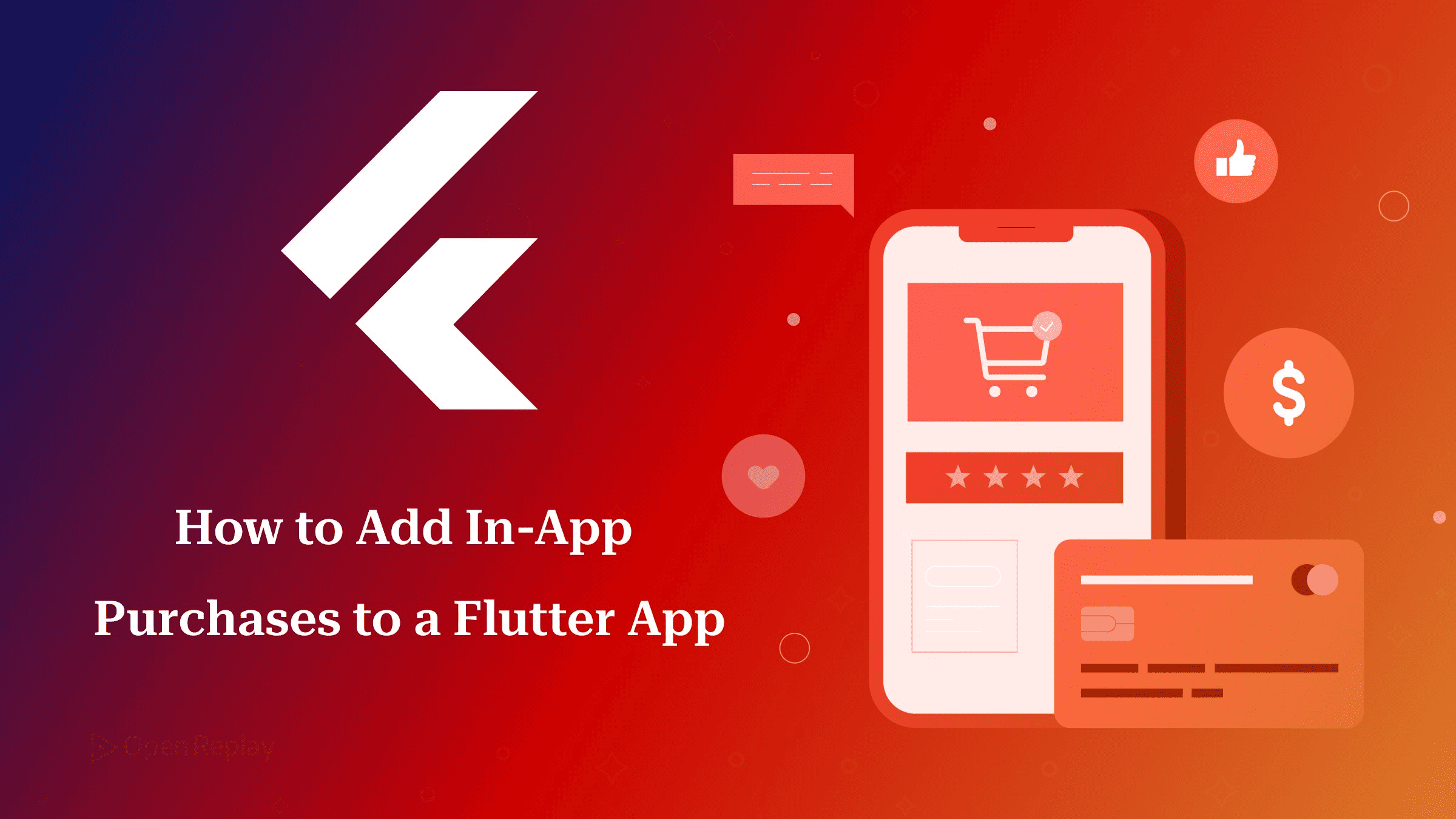
A Flutter app that sells digital goods or subscriptions on iOS or Android generally has to take payment through Apple’s in-app purchase system or Google Play Billing. Stripe and custom checkouts are not allowed for this, and both stores take a commission on every sale.
If your app already takes Stripe payments on the web, you may expect to reuse that checkout in the mobile build. For digital goods, that plan tends to end with a rejection from App Review.
Apple’s standard commission is 30%. Through the App Store Small Business Program, developers who earned up to 1 million USD in proceeds the year before pay 15% instead, on both paid apps and in-app purchases. Google has no single rate, and its service fee page says 99% of developers who pay a fee qualify for 15% or less. Stripe is still the right tool for physical goods and for services used outside the app. The rules are set out in Apple’s App Store Review Guidelines on in-app purchase and Google’s Play Payments policy. In the EU, the Digital Markets Act requires the stores to allow alternative payment options, and Apple describes its EU mechanisms on its DMA developer page. On the United States storefront, Apple’s guidelines now also let apps include buttons and links to outside purchase options. Rules on external payment links differ by region and keep changing, so read both stores’ current guidelines before you design your flow.
This article covers the official in_app_purchase plugin from start to finish: product types, store setup, one working service class, the failure modes that lose purchases, and testing. If you’re new to Flutter, start with the Flutter guide for new developers.
Key Takeaways
- Digital goods sold inside iOS and Android apps generally have to go through Apple’s and Google’s billing systems. Stripe covers physical goods and services used outside the app.
buyConsumableandbuyNonConsumablereturn aFuture<bool>that only tells you the request started. The actual result arrives asPurchaseDetailsonpurchaseStream.- If
completePurchaseisn’t called on a purchase whosependingCompletePurchaseis true, Google Play refunds it after three days and the App Store leaves the transaction unfinished. - Apple’s review guidelines call for a restore mechanism for restorable purchases.
- Only unlock content after your backend has validated
serverVerificationDatawith the App Store Server API or the Google Play Developer API.
Consumables, Non-Consumables and Subscriptions
Flutter’s in_app_purchase plugin supports three product types: consumables, non-consumables and subscriptions. Consumables use buyConsumable. Non-consumables and subscriptions both use buyNonConsumable. The type also decides what your app has to remember.
| Type | Buy method | Example | What your app must track | Restorable? |
|---|---|---|---|---|
| Consumable | buyConsumable | 100 coins | Balance, stored in your backend | No |
| Non-consumable | buyNonConsumable | Premium unlock | Entitlement flag | Yes |
| Subscription | buyNonConsumable | Monthly Pro | Expiry date and renewal state, from server verification | Yes |
Consumables are the only type the store won’t remember for you. After a coin pack is consumed, your own backend holds the only record of the balance. A non-consumable entitlement can always be rebuilt with a restore. A subscription’s state changes over time through renewals, lapses and refunds, so read it from verified server data, not from a cached local flag.
Store Setup Is Most of the Work
Most of the effort in adding a Flutter in-app purchase goes into App Store Connect and Play Console. The Dart side is short. Until both stores are configured, queryProductDetails will return nothing, however correct your code is.
Apple (App Store Connect):
- Sign the Paid Apps agreement and fill in banking and tax details.
- Create each in-app purchase with a product ID such as
premium_unlock. Create subscriptions inside a subscription group. - Complete the metadata so each product reaches Ready to Submit.
Google (Play Console):
- Upload a build to a testing track. The internal track works.
- Create the products. Use the same IDs as on Apple, or map them in code.
- Activate them. Google notes that products must be published before anyone can test them.
If queryProductDetails lists your IDs in notFoundIDs, the cause is nearly always store configuration, not Dart. Typical causes are a mismatched ID, an inactive product, an unsigned Paid Apps agreement, or no build uploaded to a Play testing track.
Flutter In-App Purchase Code: Stream, Buy, Complete
The Flutter in-app purchase flow has four steps. Subscribe to purchaseStream at startup, check isAvailable, load products with queryProductDetails, then call a buy method. Handle every result in the stream listener.
Add the dependency:
dependencies:
  in_app_purchase: ^3.3.1
The in_app_purchase package supports Android SDK 24+, iOS 13+ and macOS 10.15+. The StoreKit and Play Billing implementations are endorsed federated packages that get pulled in automatically, so you only need to add them yourself if you use their platform-specific classes. On Apple platforms, StoreKit 2 is the default on devices that support it.
buyConsumable and buyNonConsumable don’t return a purchase. A common mistake looks like this:
// Wrong: the Future resolves to a bool, not a purchase
final result = await iap.buyNonConsumable(purchaseParam: param);
if (result) unlockPremium(); // true only means the sheet opened
The correct version treats the bool as “request started” and does all granting in the stream listener:
final started = await iap.buyNonConsumable(purchaseParam: param);
if (!started) showError('Could not start purchase');
// Unlocking happens in the purchaseStream handler
Here is the full service, subscribed in main() before runApp. The plugin README recommends subscribing in your app’s initState. Doing it in main() goes one step earlier, so a listener exists before the plugin can emit any update.
import 'dart:async';
import 'package:flutter/widgets.dart';
import 'package:in_app_purchase/in_app_purchase.dart';

class PurchaseService {
  PurchaseService._();
  static final instance = PurchaseService._();

  static const coins100 = 'coins_100';
  static const premium = 'premium_unlock';

  final InAppPurchase _iap = InAppPurchase.instance;
  StreamSubscription<List<PurchaseDetails>>? _sub;

  void start() {
    _sub ??= _iap.purchaseStream.listen(
      _onPurchases,
      onDone: () => _sub?.cancel(),
      onError: (Object e) {/* log */},
    );
  }

  Future<List<ProductDetails>> loadProducts() async {
    if (!await _iap.isAvailable()) return [];
    final res = await _iap.queryProductDetails({coins100, premium});
    if (res.notFoundIDs.isNotEmpty) {/* store setup problem */}
    return res.productDetails;
  }

  Future<bool> buy(ProductDetails p) {
    final param = PurchaseParam(productDetails: p);
    return p.id == coins100
        ? _iap.buyConsumable(purchaseParam: param)
        : _iap.buyNonConsumable(purchaseParam: param);
  }

  Future<void> restore() => _iap.restorePurchases();

  Future<void> _onPurchases(List<PurchaseDetails> purchases) async {
    for (final p in purchases) {
      var finish = true;
      switch (p.status) {
        case PurchaseStatus.pending:
          // show "waiting for approval"
          break;
        case PurchaseStatus.purchased:
        case PurchaseStatus.restored:
          final valid = await _verifyOnServer(p); // null = unreachable
          if (valid == null) {
            finish = false; // redelivered next launch
          } else if (valid) {
            await _deliver(p);
          }
        case PurchaseStatus.error:
          // show p.error?.message
          break;
        case PurchaseStatus.canceled:
          // no error UI
          break;
      }
      if (finish && p.pendingCompletePurchase) {
        await _iap.completePurchase(p);
      }
    }
  }

  Future<bool?> _verifyOnServer(PurchaseDetails p) async {
    // POST p.verificationData.serverVerificationData,
    // p.productID and platform to your backend
    return true;
  }

  Future<void> _deliver(PurchaseDetails p) async {/* credit coins / set flag */}
}

void main() {
  WidgetsFlutterBinding.ensureInitialized();
  PurchaseService.instance.start();
  runApp(const MyApp());
}
_verifyOnServer is a placeholder for your backend call. It returns null when the server can’t be reached, so the purchase is left incomplete and comes back on the next launch. That is only safe if it gets resolved within Android’s three-day window.
| Status | What the app does | Call completePurchase? |
|---|---|---|
pending | Show a waiting state (for example, Ask to Buy or a delayed payment method) | No, wait for the final status |
purchased | Verify on the server, then deliver | Yes, if pendingCompletePurchase |
restored | Verify, then re-grant the entitlement | Yes, if pendingCompletePurchase |
error | Show error.message | Yes, if pendingCompletePurchase |
canceled | Return quietly to the paywall | Yes, if pendingCompletePurchase |
What Goes Wrong With In-App Purchases
Four common mistakes lose purchases or get apps rejected: a missing restore button, a stream subscription that starts too late, completePurchase never being called, or trusting the client.
Missing Restore button. Apple’s Guideline 3.1.1 tells apps to offer a way to restore any restorable in-app purchase. Restored purchases arrive on purchaseStream with PurchaseStatus.restored, so the button only has to call restorePurchases(). Your existing handler grants access. Put it on the paywall and in settings:
TextButton(
  onPressed: PurchaseService.instance.restore,
  child: const Text('Restore Purchases'),
)
If a push notification or a marketing link opens the paywall, route it with Deep Linking in Flutter so the Restore button is always one tap away.
Listening too late. A purchase that completes while your app is closed, such as an approved Ask to Buy request or a slow payment, is delivered on the stream the next time the app launches. If the listener is attached on a screen the user never reaches, that update goes unhandled. The user doesn’t get what they paid for, and on Android a purchase that is never completed is refunded after three days.
Never completing. If a purchase’s pendingCompletePurchase is true and completePurchase is never called, Google Play refunds it after three days and the App Store leaves the transaction unfinished.
Trusting the client. Don’t unlock content based on the status your app receives. Send verificationData.serverVerificationData to your backend and validate it there: with the App Store Server API on Apple platforms, or the Google Play Developer API on Android. Under StoreKit 2, serverVerificationData is a signed JWS transaction. Your server should verify its signature, look the transaction up with the App Store Server API, or do both. The verification request is an ordinary backend call. If your backend uses GraphQL, Consuming GraphQL APIs with Flutter shows how to wire it up.
Paywall design and managed subscription SDKs such as RevenueCat are separate choices that sit on top of this flow.
How Do You Test Purchases Without Real Money?
Apple and Google each provide a test environment for in-app purchases. Apple offers sandbox accounts and an Xcode StoreKit configuration file. Google offers license testers on a Play testing track.
- Apple sandbox testers: Create sandbox accounts in App Store Connect and sign into one on a device. Sandbox purchases go through your real App Store Connect products without charging anyone.
- StoreKit configuration file: With a StoreKit configuration file in Xcode, you can define products locally and test purchases in the iOS Simulator before App Store Connect is fully set up.
- Play license testers: In Play Console, open Settings > License testing and add Google accounts. Test purchases made by license testers are not charged to their accounts. Google’s billing testing guide warns that testers on a test track who are not license testers pay real money.
Test a fresh install plus Restore on both platforms before you submit.
Ship It
For a correct Flutter in-app purchase flow: configure both stores, subscribe to purchaseStream before anything else runs, verify every purchase on your server, and complete every purchase that has pendingCompletePurchase set. Next, create one product in each console, test it with a sandbox account and a license tester, and confirm that it shows up in productDetails rather than notFoundIDs.
FAQs
How do I upgrade or downgrade a subscription on Android with in_app_purchase?
Call buyNonConsumable with a GooglePlayPurchaseParam that includes a ChangeSubscriptionParam. Pass it the user's old GooglePlayPurchaseDetails and, if you want, a ReplacementMode such as ReplacementMode.withTimeProration. These classes come from in_app_purchase_android, so import that package when you need them. On iOS you can skip this step. Subscriptions in the same subscription group already replace each other, so the App Store handles the switch.
Does the in_app_purchase plugin work on Flutter web?
No. The plugin needs a store behind it, and it only supports the App Store (on iOS and macOS) and Google Play (on Android). A Flutter web build has no store behind it, so web sales need a web payment processor such as Stripe. The platform restriction on Stripe applies to digital goods sold inside iOS and Android apps, not to purchases made on the web.
What is the difference between in_app_purchase and RevenueCat's purchases_flutter?
in_app_purchase handles only the connection to the store. Server-side verification, entitlement storage and subscription state tracking are left to your own backend. RevenueCat's purchases_flutter wraps StoreKit and Google Play Billing together with RevenueCat's hosted backend, which adds server-side receipt validation, subscription status tracking and webhooks. Both packages still go through Apple and Google billing, so the stores take the same commission either way.
What happens to existing subscribers when I raise a subscription price?
It depends on the store, the region and the size of the increase. Some increases need the subscriber to agree, and if they don't agree, the subscription stops renewing. Both stores also allow some increases with notice only. On iOS, StoreKit shows a price consent sheet inside your app by default, and the in_app_purchase README explains how to delay it until a better moment. On Android, Google Play tells subscribers about the change by email and notification, so you don't need Dart code to trigger it.
Gain Debugging Superpowers
Unleash the power of session replay to reproduce bugs, track slowdowns and uncover frustrations in your app. Get complete visibility into your frontend with OpenReplay — the most advanced open-source session replay tool for developers.
Star on GitHub12k