Setting Up a Remote Box for Agentic Coding
Set up Claude Code on a remote box with Tailscale, tmux, mosh, and systemd, plus security steps for SSH keys, secrets, and private access.

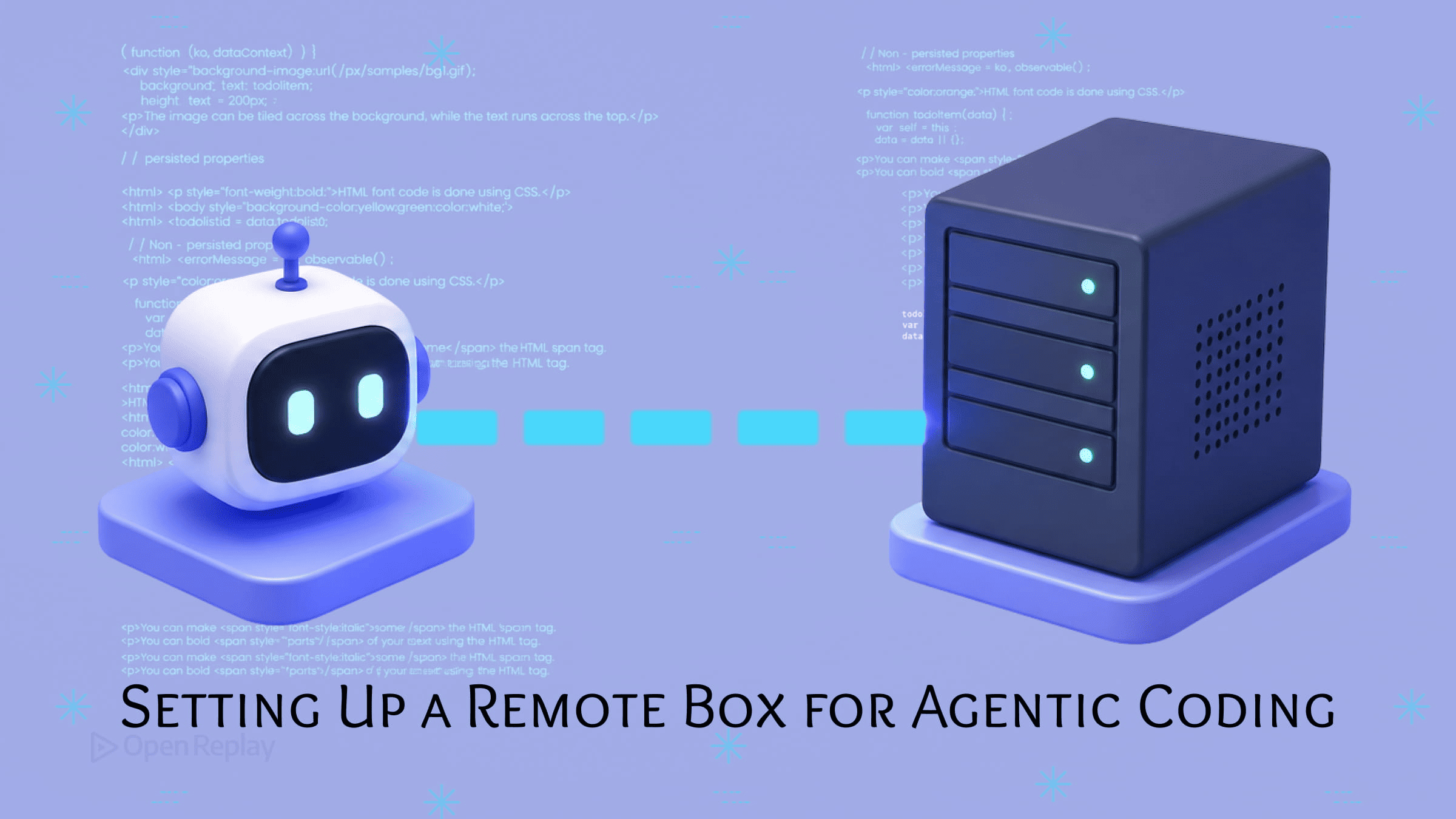
The minimal stack for running Claude Code on a remote box is a Linux VPS or always-on machine, Tailscale for a private WireGuard mesh that requires no port forwarding or dynamic DNS, tmux for persistent terminal sessions that survive disconnects, and mosh or SSH as the connection layer — all free, all composable, and all durable past this month’s wrapper tools. This guide walks through that stack end to end for the common case the existing write-ups skip: a coding agent on a cloud VPS or spare box, hardened and driven remotely from a laptop or phone.
The problem worth solving is persistence. When you run a coding agent locally and close your laptop, the session dies. A remote box keeps the agent alive across disconnects, gives you ownership and predictable cost over a managed platform, and lets you steer the work from anywhere. The catch — under-covered everywhere — is that a box running an agent with shell access and API keys is a serious attack surface, so this guide leads with security rather than bolting it on at the end.
Key Takeaways
- There are two distinct goals readers routinely conflate: running a CLI agent like Claude Code in a persistent session you attach and detach from (the tmux pattern), and hosting an agent as an always-on HTTP service (the systemd pattern) — they require different setups and different security postures.
- Tailscale builds a WireGuard-encrypted mesh between your devices; your remote box gets a stable
100.x.x.xaddress reachable from any authenticated device without opening firewall ports or configuring dynamic DNS. - A remote box running a coding agent holds shell access, API keys, and repository credentials — binding the agent port to
0.0.0.0on a public VPS, even briefly for a smoke test, puts all three at risk. - Never put API keys in the
Environment=line of a systemd unit file; useEnvironmentFile=to keep them out ofsystemctl showoutput, and reach forLoadCredential=for genuine secret protection. - Claude Code now ships native Remote Control and cloud Remote Sessions, but both are single-session and tied to a live process; the DIY stack is what you want for always-on, headless, or multi-project setups.
Why a Remote Box, and DIY vs. the Alternatives
A remote box wins when you need a coding agent that survives disconnects, runs unattended, and stays reachable from any device — without paying a platform’s per-seat tax or accepting its sandbox limits. The trade is operational: you own the security, the uptime, and the patching. For developers already comfortable with SSH and Git, that trade is usually worth it.
Before building anything, decide which of three approaches fits. The landscape changed in early 2026, and the older “you need tmux and SSH to use Claude Code remotely” framing is now incomplete.
| Approach | What it is | Best for | Limits |
|---|---|---|---|
| Native Remote Control / Remote Sessions | Claude Code’s built-in remote features — outbound-only HTTPS control from phone or browser, plus Anthropic-hosted cloud sessions | Single-session steering with zero infrastructure | Single-session; tied to a live process; runs on someone else’s terms |
| DIY remote box | Your VPS or spare machine running the agent under tmux or systemd | Always-on, headless, multi-project work you own end to end | You own security and uptime |
| Managed agent platforms | Hosted products that orchestrate parallel agents | Teams wanting polished merge tooling without ops | Vendor lock-in; recurring cost |
Anthropic shipped native Remote Control as a research preview and cloud Remote Sessions in early 2026 (CLI v2.1.x as of mid-2026). Remote Control uses outbound-only HTTPS — no inbound ports — to let you steer a session from your phone. It’s genuinely useful, but it’s single-session and dies with the terminal that launched it. Claude Code itself runs as a CLI tool with no background daemon for interactive sessions; the open feature request for a headless daemon mode confirms closing the terminal ends the session. For always-on, headless, or multi-project setups, you build on durable primitives and layer convenience tools on top.
The managed-platform category exists and is well-funded, but for a developer who already lives in SSH and Git, a self-hosted box gives more control at lower cost. This guide covers the DIY path.
The Two Patterns: tmux vs. systemd
There are two distinct goals readers routinely conflate, and they need different setups. Running a CLI coding agent like Claude Code in a session you attach to and detach from is the tmux pattern. Hosting an agent as an always-on HTTP service reachable via API is the systemd pattern. Picking the wrong one is the most common structural mistake in remote-agent setups.
| tmux (interactive) | systemd (service) | |
|---|---|---|
| Use case | CLI agents you steer in real time | HTTP agents that run unattended |
| Restart on crash | Manual reattach | Restart=always |
| Logs | Session scrollback | journalctl -u <service> |
| Secrets | Shell env or sourced .env | EnvironmentFile= / LoadCredential= |
| Mobile access | mosh + tmux attach | curl / browser via reverse proxy |
Use tmux when you want to watch and steer the agent — type prompts, approve actions, read output. Use systemd when the agent is a service that accepts requests and runs without a human attached. Most people running Claude Code interactively want tmux. Most people exposing an agent behind an API want systemd. Some setups use both.
Run Claude Code Remotely: The Canonical Free Stack
The canonical free stack for running Claude Code remotely is a Linux box, Tailscale for the private network layer, OpenSSH plus mosh for the connection, and tmux for persistent sessions. This section is the copy-pasteable setup sequence. Run the security hardening in the next section before treating the box as production.
Discover how at OpenReplay.com.
Install Tailscale
Tailscale builds a WireGuard-encrypted mesh between your devices: once installed, your remote box gets a stable 100.x.x.x address reachable from any authenticated device without opening firewall ports, configuring dynamic DNS, or touching your router. Tailscale’s underlying protocol is WireGuard, and the free Personal plan covers up to 6 users with unlimited user-owned devices as of the April 2026 pricing overhaul — verify current limits before relying on them.
Install it on the remote box per the official installation docs:
curl -fsSL https://tailscale.com/install.sh | sh
sudo tailscale up
The tailscale up command prints an authentication URL. Open it, sign in, and the box joins your tailnet. Run tailscale ip -4 to get its 100.x.x.x address. Install Tailscale on your laptop and phone the same way, authenticate them to the same account, and all three devices can now reach each other directly.
A caveat that breaks setups silently — one we hit ourselves: do not enable Tailscale’s built-in SSH server with tailscale up --ssh if you plan to use mosh. Tailscale SSH runs Tailscale’s own SSH server, not OpenSSH, and mosh has to run mosh-server over real OpenSSH and parse its output to bootstrap a session — which Tailscale SSH does not support. Keep OpenSSH installed and running alongside Tailscale so mosh can connect.
Set Up SSH and mosh
SSH gives you the shell; mosh keeps it usable over flaky mobile connections by surviving IP changes and roaming. mosh requires a UDP port in the range 60000–61000 to be reachable, per the mosh documentation. Over a Tailscale mesh that range is already reachable between authenticated devices, so no router configuration is needed.
Install mosh on both the server and your client:
sudo apt update && sudo apt install -y mosh tmuxConnect from your laptop using the Tailscale address:
mosh youruser@100.x.x.xIf mosh fails to connect, fall back to plain ssh youruser@100.x.x.x to confirm the box is reachable, then check that OpenSSH (not Tailscale SSH) is answering.
Create Persistent tmux Sessions
tmux is what keeps the agent alive after you disconnect. Start a session, run Claude Code inside it, detach, and the agent keeps working; reattach later from any device to check or steer it.
Name tmux sessions after the project, not the tool. Use tmux new-session -s myproject rather than tmux new-session -s claude — when you’re running three agents across three repos, tmux ls needs to tell you which session is which:
tmux new-session -s myproject
# inside the session:
cd ~/code/myproject
claude
# detach with Ctrl-b then d
The -s flag names the session. Reattach from anywhere with tmux attach -t myproject, or list everything running with tmux ls. That detach-and-reattach cycle is the whole interactive remote-agent loop: close your laptop, reattach from your phone over mosh, read what the agent did, give it the next instruction.
The Security Baseline
A remote box running a coding agent is a high-value attack target: it holds shell access, API keys, and often repository credentials. Binding the agent port to 0.0.0.0 on a public VPS, even briefly for a smoke test, puts all three at risk. Harden the box before you trust it with anything. This section is not optional.
SSH Keys Only
Disable password authentication so the only way in is a key you hold. Edit /etc/ssh/sshd_config and set:
PasswordAuthentication no
PermitRootLogin no
The PasswordAuthentication no directive disables password login, and PermitRootLogin no blocks direct root SSH — both documented in the sshd_config manual. A common mistake is editing the wrong file; these directives belong in /etc/ssh/sshd_config, not a client config. Apply with sudo systemctl restart ssh. Confirm your key works in a separate session before closing the one you have, so a typo doesn’t lock you out.
Keep the Private Mesh Private
Tailscale’s mesh is already authenticated, but you can tighten which devices reach which ports using Tailscale ACLs. An ACL policy restricts traffic between tagged devices — for example, allowing only your laptop and phone to reach the agent box, and nothing else on the tailnet. For a single-user setup the default “allow all within your tailnet” is reasonable; add ACLs when other people or untrusted devices share the network.
Never Bind the Agent to 0.0.0.0
When smoke-testing a locally-bound service, use curl http://127.0.0.1:9000/health from the server itself rather than temporarily binding to 0.0.0.0. On a VPS with no firewall rule blocking port 9000, that one-line change exposes your agent to the public internet for as long as the process runs. Bind to 127.0.0.1 and reach the service through Tailscale or a reverse proxy — never directly.
Keep Secrets Out of the Unit File
Never put API keys in the Environment= line of a systemd unit file — they appear in systemctl show output. Use EnvironmentFile=/etc/myagent/secrets.env to keep the values out of the unit file and systemctl show, per the systemd.exec documentation. Lock the file down:
sudo mkdir -p /etc/myagent
sudo chmod 640 /etc/myagent/secrets.env
sudo chown root:myagent /etc/myagent/secrets.env
Be precise about what this buys you: EnvironmentFile= keeps secrets out of the unit file and systemctl show, but once loaded, the values remain readable in the running process’s environment and over D-Bus. For genuine secret protection, use systemd’s LoadCredential=, documented in systemd’s credentials guide, which passes credentials through a restricted directory rather than the process environment.
Keeping a Service Agent Alive: The systemd Unit
For an agent that runs as an always-on HTTP service rather than an interactive session, use a systemd unit bound to 127.0.0.1 with Restart=always. This is the systemd pattern: the service starts on boot, restarts on crash, logs to the journal, and never touches a public port directly. EnvironmentFile= is a long-standing core systemd directive, available on every current systemd release, per the systemd.exec documentation.
Create /etc/systemd/system/my-agent.service:
[Unit]
Description=My Agent Service
After=network.target

[Service]
User=myagent
Group=myagent
WorkingDirectory=/home/myagent/app
EnvironmentFile=/etc/myagent/secrets.env
ExecStart=/home/myagent/app/venv/bin/uvicorn main:app --host 127.0.0.1 --port 9000
Restart=always
RestartSec=5

[Install]
WantedBy=multi-user.target
Every directive earns its place. After=network.target waits for networking. Running a dedicated User/Group limits blast radius if the agent is compromised. EnvironmentFile= loads secrets from the locked-down file. ExecStart runs the server directly from the project’s virtualenv — no wrapper scripts — bound to 127.0.0.1 so the port is never publicly reachable. Restart=always with RestartSec=5 brings the service back five seconds after any crash.
Enable and start it:
sudo systemctl daemon-reload
sudo systemctl enable --now my-agent
sudo systemctl status my-agent
To expose the service safely, put a reverse proxy in front of the localhost-bound port. An nginx proxy_pass to 127.0.0.1 keeps the upstream unreachable directly from outside while terminating TLS at the edge:
server {
    listen 443 ssl;
    server_name agent.example.com;

    ssl_certificate     /etc/letsencrypt/live/agent.example.com/fullchain.pem;
    ssl_certificate_key /etc/letsencrypt/live/agent.example.com/privkey.pem;

    location / {
        proxy_pass http://127.0.0.1:9000;
        proxy_set_header Host $host;
        proxy_set_header X-Forwarded-For $proxy_add_x_forwarded_for;
    }
}
Provision the certificate with Certbot, which automates Let’s Encrypt issuance and renewal. For a single-user setup, you often don’t need a public hostname at all — reaching the service over Tailscale at 100.x.x.x:9000 from authenticated devices avoids the public surface entirely.
Reaching the Box from Mobile
You reach a remote agent from a phone the same way you reach it from a laptop — over Tailscale, with a terminal client or a browser terminal in front of it. The tooling landscape here is moving fast as of mid-2026; treat these as optional enhancements, not load-bearing infrastructure.
The durable options are a mobile SSH client (several support persistent connections and key-based auth) plus tmux, or mosh for connections that survive network changes. On top of that sit browser-terminal tools. ttyd exposes a terminal over the web. vibetunnel (MIT-licensed, Mac-first with a cross-platform Linux npm build) proxies a terminal into the browser and was built for monitoring Claude Code agents, with remote access via Tailscale. If you run any browser terminal, keep it bound to localhost and reach it over Tailscale — exposing a web terminal publicly is the same 0.0.0.0 mistake in a different shape.
Claude Code’s own native Remote Control covers the lightweight case: outbound-only HTTPS, steer from a phone, no inbound ports. It’s the fastest way to nudge a single live session. The DIY stack remains what you reach for when the work outlives any one terminal.
The Daily Workflow
The daily redeploy loop on a remote box is three commands: pull the code, restart the service, tail the logs. For a systemd-managed agent, that’s:
cd ~/app && git pull origin main
source venv/bin/activate && pip install -r requirements.txt
sudo systemctl restart my-agent
journalctl -u my-agent -f
git pull fetches the latest code, the dependency install picks up any new requirements, systemctl restart cycles the service, and journalctl -u my-agent -f tails the service logs in real time so you can confirm a clean start — journalctl reads the systemd journal, documented at freedesktop.org. For an interactive tmux agent, the loop is even simpler: reattach with tmux attach -t myproject, git pull, and let the agent continue.
Conclusion
Build on the primitives that outlast the wrappers: SSH and Tailscale for the network, tmux for sessions you steer, systemd for services that run unattended, and a security baseline that keeps the agent port off the public internet. Pick the tmux pattern or the systemd pattern deliberately based on whether you’re steering an agent or hosting one, harden the box before you trust it with API keys, then layer native Remote Control or a browser terminal on top as convenience. Start with a fresh Linux box and the Tailscale install command above — the rest is composable from there.
FAQs
Why does my agent keep dying when I disconnect from SSH?
A plain SSH session ties the agent's process to your terminal, so closing the connection sends a hangup signal that kills it. Run the agent inside a tmux session instead: start it with tmux new-session -s myproject, launch the agent, then detach with Ctrl-b followed by d. The process keeps running on the server, and you reattach later from any device with tmux attach -t myproject.
When should I use Claude Code's native Remote Control instead of a DIY tmux and SSH setup?
Use native Remote Control when you only need to steer a single live session from your phone or browser with zero infrastructure, since it uses outbound-only HTTPS and opens no inbound ports. It is single-session and dies with the terminal that launched it, so for always-on, headless, or multi-project work that must survive disconnects, build the DIY stack on SSH, Tailscale, tmux, and systemd instead.
Does mosh work over a Tailscale network?
Yes, mosh works over a Tailscale mesh because the UDP port range 60000 to 61000 it requires is already reachable between authenticated devices, so no router configuration is needed. The one failure mode is enabling Tailscale's own SSH server with tailscale up --ssh, which replaces OpenSSH; mosh must run mosh-server over real OpenSSH to bootstrap, so keep OpenSSH installed and running alongside Tailscale.
What is the difference between using EnvironmentFile and LoadCredential for secrets in systemd?
EnvironmentFile loads values from an external file so they stay out of the unit file and systemctl show output, but the values remain readable in the running process environment and over D-Bus. LoadCredential is stronger because it passes secrets through a restricted directory rather than the process environment, keeping them out of reach of the running process's environment. Use EnvironmentFile for configuration and LoadCredential for genuine secrets.